
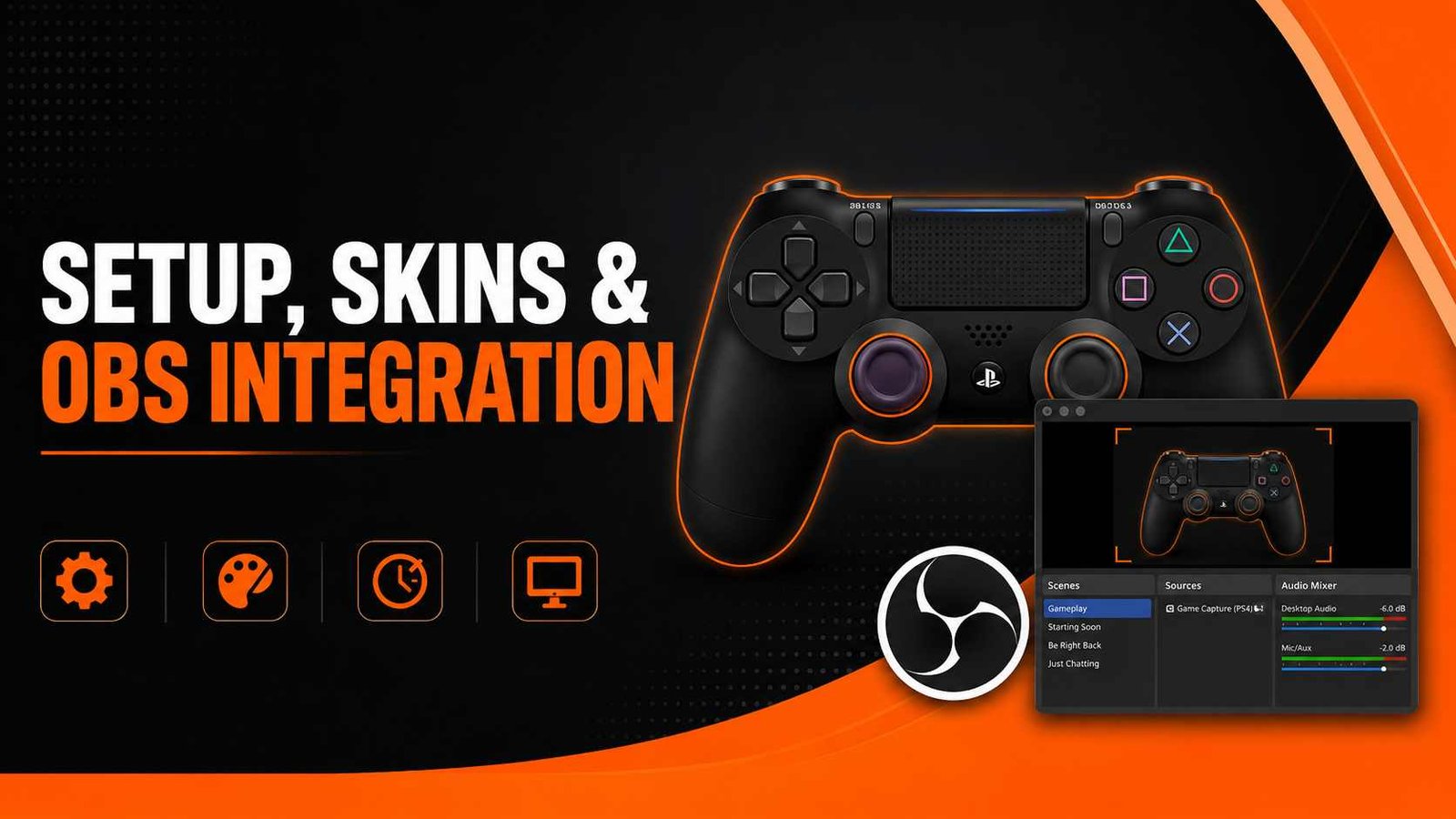
Setup, Skins &
OBS Integration
Gamepad Viewer is a free tool that shows your controller's buttons, sticks, and triggers live on screen. This guide walks you through adding it to OBS as a stream overlay, choosing or customising a controller skin, and getting a clean layout, no install and no signup needed.
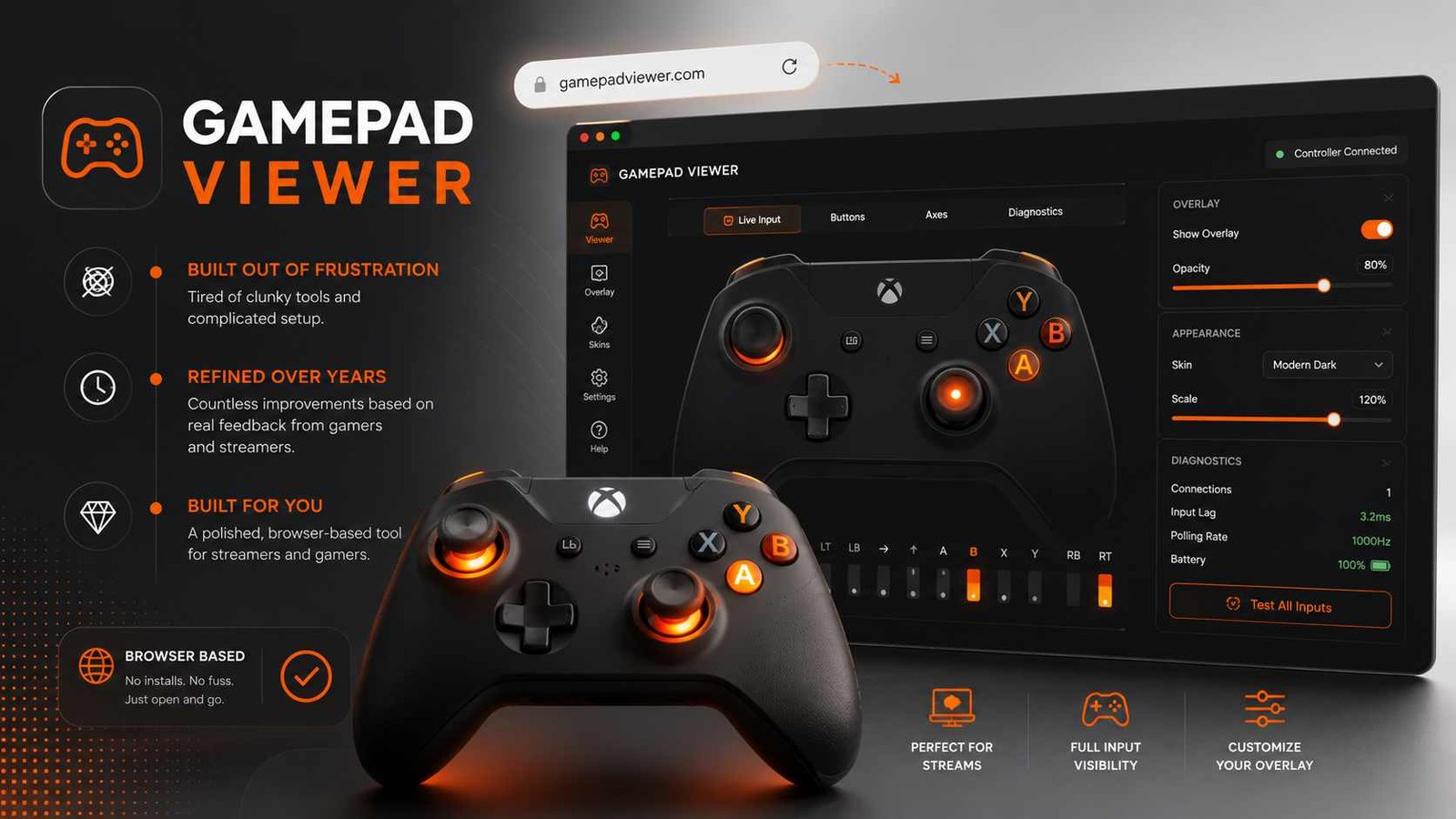
Built Out of Frustration.
Refined Over Years.
Gamepad Viewer was born from a simple problem: every existing solution for displaying controller input on stream was either a nightmare to set up, locked behind a complicated install process, or so rigid that any kind of customization was out of the question.
After building a working version for personal use, it became clear the tool had real value beyond one setup. Since that first release the project has grown continuously, new skins, custom skin support, scaling controls, input delay simulation, and a full suite of diagnostic tools have all been added based on direct community feedback.
Today Gamepad Viewer serves as both a live streaming overlay for content creators and a hardware diagnostic tool for anyone who needs to verify that their controller is working exactly as expected. It runs entirely in the browser using the W3C Gamepad API, no extensions, no drivers, no setup required. All of this is made possible thanks to Marcin Wichary's Gamepad.js and Tester.js libraries, which have been modified and extended for this purpose.
From One Skin to a Full Platform
The tool started with a single Xbox 360 skin and a simple goal. Here is how it grew into the most fully-featured browser-based gamepad viewer available today.
Xbox 360 Skin, The First Release
Gamepad Viewer launched with a single Xbox 360 controller skin. The goal was minimal: show live button presses on screen so a Twitch audience could follow inputs during a speedrun. All other existing tools at the time required desktop software, complex OBS plugins, or were simply too hard to configure. This tool ran in a browser tab, nothing to install, nothing to configure. That simplicity was the entire point.
Multiple Skins Added, DualShock, Switch Pro & More
Community demand pushed the skin library far beyond the original Xbox 360 layout. PlayStation DualShock, Nintendo Switch Pro, Xbox One, and several community-designed skins were added over successive updates. Each skin was purpose-built with accurate button placement, correct analog stick geometry, and full trigger analog range support so that every input mapped visually to the correct hardware control.
Custom Skin Builder, Full Creative Control
The custom skin system transformed Gamepad Viewer from a display tool into a platform. Users gained the ability to define their own controller layout using a JSON-based skin format, specify custom colors, upload their own background artwork, and set per-button highlight colors. Content creators could finally match their gamepad overlay to their stream branding without touching a single line of tool code.
Input Delay, Scaling, Drift Detection & Rumble Testing
After countless requests from competitive players and content creators, the tool was extended with a full diagnostic layer: adjustable input delay to simulate in-game processing latency, viewport scaling to fit any stream resolution, stick drift detection that samples raw axis values independent of the deadzone, and a three-mode dual-motor rumble tester. These features turned Gamepad Viewer into a serious hardware verification tool alongside its streaming role.
OBS-Native Overlay, CLR Browser & Chroma Key Support
The current version ships with two dedicated OBS integration paths, Chroma Key window capture and CLR Browser source via a generated URL, plus a fully transparent background so the overlay composites cleanly over any game footage. The Generate URL tool lets you lock in your skin, scale, and input delay settings into a single shareable link that OBS loads directly as a browser source, no reconfiguration needed between stream sessions.
Two Ways to Add It to OBS
Choose the method that fits your workflow. Chroma Key uses a window capture and works with any skin. CLR Browser uses a direct URL and is cleaner for advanced stream layouts.
This method captures the Gamepad Viewer browser window directly in OBS and uses the built-in Color Key filter to remove the background. It works with every skin and requires no additional plugins. Have Gamepad Viewer open in a browser window before starting these steps.
-
1
Create a New Window Capture Source
In OBS, click the + button in the Sources panel and select Window Capture from the list. Give it a name such as "Gamepad Overlay" and click OK to open the source properties.
-
2
Select the Gamepad Viewer Window
In the Window Capture properties, open the Window dropdown and select the browser window that has Gamepad Viewer open. The preview should show the controller skin with the background visible.
-
3
Enable Color Key Filter
Right-click the source, go to Filters, click the + icon, and select Color Key. This filter removes a specific color from the captured image, leaving the controller skin floating on a transparent layer in your scene.
-
4
Use the Eyedropper to Select the Background Color
Next to the Color field, click Select and use the eyedropper tool to click directly on the background area of the Gamepad Viewer page. This locks in the exact color that OBS will make transparent.
Click an empty area of the background away from buttons or text for the cleanest color sample -
5
Set Similarity and Blend to Your Desired Values
Increase Similarity until all of the background disappears without cutting into the controller skin edges. Then adjust Blend to soften anti-aliasing around the edges. These values vary per skin and monitor, work up from lower numbers and stop when the result looks clean.
Start: Similarity 80 / Blend 50, adjust from there -
6
Enable Sub-Region
Back in the source properties, enable Sub-Region. This lets you crop out the browser chrome, the tab bar and address bar, so only the controller skin area is captured and placed into your scene.
-
7
Click Select Region and Shrink the Box
Click Select Region and drag the handles to tightly frame just the controller skin, excluding all browser UI. Precision here saves you repositioning time in your final scene layout.
-
8
Click OK, You're Done
Click OK to confirm. Your Gamepad Viewer overlay is now live in OBS. Position and scale it within your scene as needed. Every button press and stick movement appears in real time on your stream output.
Press buttons on your controller to confirm the overlay responds before going live
Keep your browser window open during the stream. The Window Capture source reads live from the browser. If you close or minimize the Gamepad Viewer window, the OBS source will go blank. Keep it in a separate browser window behind your game.
The CLR Browser method feeds a generated Gamepad Viewer URL directly into OBS as a Browser Source. This is cleaner than window capture, no color keying, no browser chrome to crop, and your settings are locked into the URL so the overlay looks identical every session.
Generate Your Custom URL First
Visit gpadviewer.com/generate-url to create your personalised overlay link-
1
Head to the Generate URL Page
Go to gpadviewer.com/generate-url and configure your desired skin, scale, background transparency, and input delay. The page builds your personalised URL in real time as you adjust each setting.
-
2
Click the Generated Preview URL to Copy It
Once you are happy with the preview, click the generated URL displayed on the page to copy it to your clipboard. This URL contains all your settings encoded as parameters, skin, scale, colors, and delay are all baked in.
Save the URL in a notes file, paste it back any time to restore your exact setup -
3
In OBS, Create a New CLR Browser Source
In OBS, click + in the Sources panel and select Browser Source. Give it a name such as "Gamepad Overlay URL" and click OK to open the source properties.
-
4
Paste the Copied URL into the URL Text Box
In the Browser Source properties, clear the existing URL field and paste your copied Gamepad Viewer URL. Ensure Local file is unchecked. The preview should immediately show your controller skin on a transparent background.
-
5
Adjust Width and Height Values
The width and height values require some experimentation to get right. The default values may be too large or small for your scene. Work up or down in increments of 50 pixels from the default values already set until the controller skin fills the desired area without clipping.
Default start: Width 700 / Height 430 -
6
Click OK, You're Done
Click OK to save the Browser Source. Your Gamepad Viewer overlay now runs directly inside OBS with full transparency, no browser window needs to stay open, no color keying required. The overlay loads automatically every time you open OBS.
This is the cleanest method for consistent multi-session streaming setups
Connect your controller before OBS loads the source. The Browser Source reads Gamepad API data just like a normal browser tab. Connect your controller and press any button to wake it before starting your stream.
Everything Packed In
A complete breakdown of every capability inside Gamepad Viewer, from basic button display to advanced diagnostic tools built for competitive players and hardware testing.
Real-Time Input Display
Every button press, analog stick movement, and trigger pressure renders instantly at full polling rate with zero perceptible lag between hardware input and visual response.
Multiple Controller Skins
Choose from Xbox 360, Xbox One, Xbox Series, DualShock 4, DualSense, Switch Pro, and more. Each skin is purpose-built with accurate button geometry and layout.
Custom Skin Builder
Create your own controller layout using the JSON skin format. Define button positions, shapes, colors, and highlight states to match your stream branding exactly.
Stick Drift Detection
Raw axis values are sampled independently of the deadzone. An orange badge fires automatically when any stick reports movement without being touched.
Deadzone Calibration
A precision slider lets you tune the analog stick deadzone from 0.00 to 0.50 in real time. See immediately how your threshold affects stick response before locking it in.
Dual-Motor Rumble Test
Three test modes let you fire the weak motor, strong motor, or both simultaneously to isolate a dead rumble motor before filing a warranty claim.
Generate URL Tool
Lock your skin, scale, and delay settings into a shareable URL. Paste it directly into OBS Browser Source for a consistent overlay that loads identically every session.
Session Log Export
Download a timestamped TXT file with your device name, total press count, and full input history, useful evidence when contacting a manufacturer about a hardware fault.
Full Mobile Support
Pairs with any Bluetooth controller on Android or iOS. Chrome on Android and Safari on iOS 16 and newer both support the Gamepad API with zero additional setup.
OBS-Ready Transparent Background
The page background is fully transparent so the controller skin composites cleanly over any game scene in OBS when using the Browser Source method, no chroma keying needed.
Input Delay Simulation
Simulate in-game processing latency so your overlay stays visually in sync with what your audience sees happening on screen during analysis or teaching streams.
100% Local Processing
All input data is processed entirely in your browser. Nothing is sent to any server. Your controller inputs never leave your device under any circumstances.
Getting the Best Results in OBS
Quick-reference cards for the two most common overlay setups. Use these alongside the full installation steps above when configuring your scene layout.
- 1
Add a Window Capture source pointing to your Gamepad Viewer browser window
- 2
Add a Color Key filter and eyedrop-sample the background of the page
- 3
Adjust Similarity and Blend until the background removes cleanly without cutting into the skin
- 4
Enable Sub-Region and click Select Region to crop to just the controller skin area
- 5
Keep the Gamepad Viewer browser window open and visible throughout your entire stream session
- 1
Generate your URL at gpadviewer.com/generate-url with your chosen skin and settings
- 2
In OBS, add a Browser Source and paste the copied URL into the URL field
- 3
Start with Width 700 / Height 430 and adjust in 50px increments to fit your scene
- 4
No color keying needed, the background is fully transparent via the generated URL
- 5
Connect your controller and press any button before going live to wake the Gamepad API
Make It Look Exactly Like Your Brand
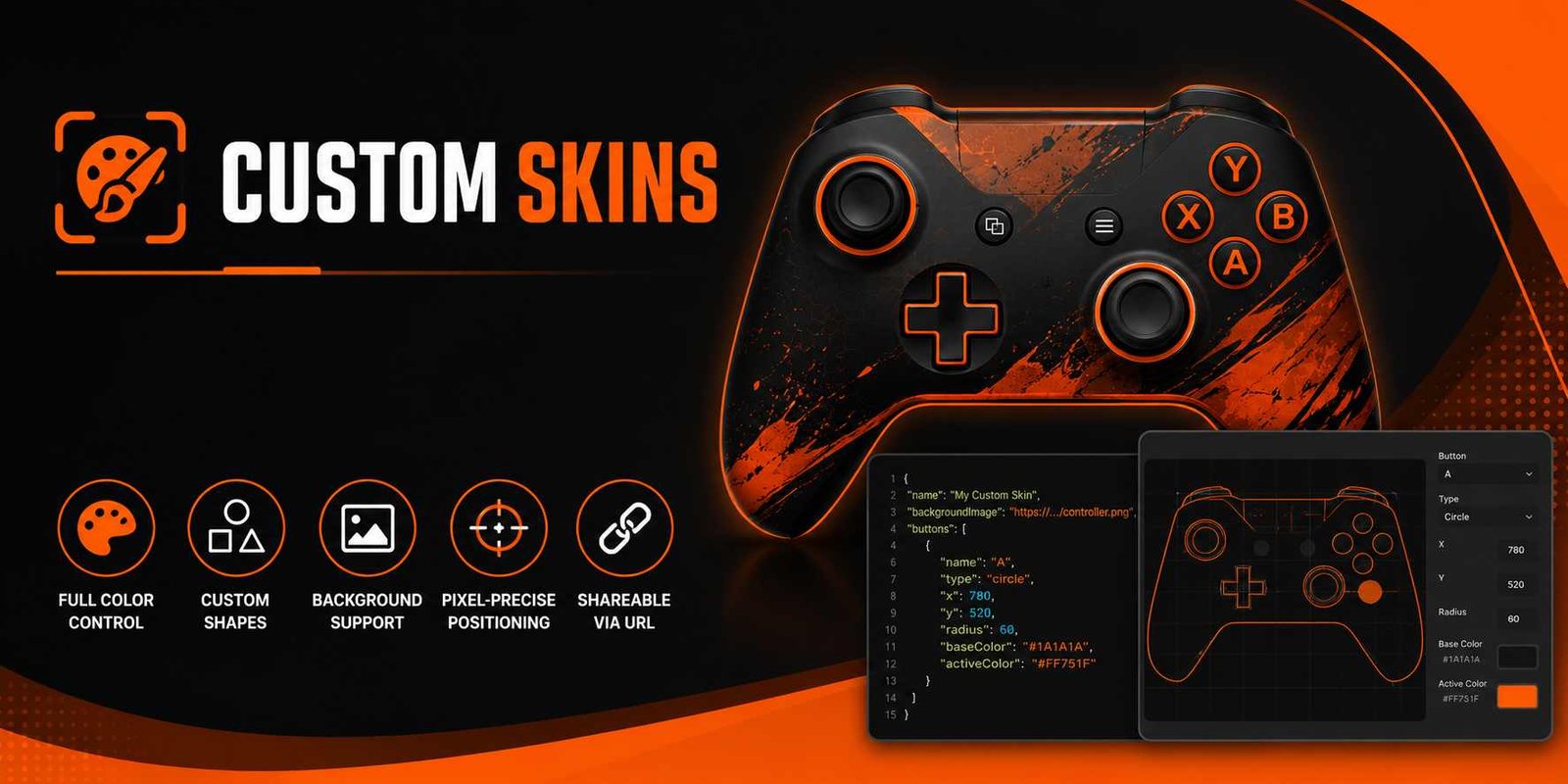
The built-in skins cover every major controller, but if your stream has a distinct visual identity the custom skin system lets you build a controller overlay from scratch that fits perfectly into your brand palette and layout style.
Custom skins use a straightforward JSON format to define button positions, shapes, sizes, base colors, and active highlight colors. Upload your own background image for a custom controller body or work purely with shapes defined in the JSON. For the exact parameter names, see the URL parameter docs.
- Full color control, set any base color and any pressed-state highlight color for every individual button independently
- Custom button shapes, use circles, rectangles, or custom polygon paths to define any button area
- Background image support, upload your own controller body artwork as the base layer of the skin
- Pixel-precise positioning, every element placed by coordinate so your layout is exactly where you want it
- Shareable via generated URL, your custom skin encodes into the URL just like any built-in skin does
Get More From Your Setup
Hard-won tips from streamers and competitive players who use Gamepad Viewer every session. Each one saves time or improves overlay quality.
Bookmark Your Generated URL
After generating your URL, bookmark it in your browser and paste it into a notes file. If OBS resets your Browser Source settings or you reinstall OBS, you can restore your exact overlay in under 30 seconds, no reconfiguration required.
Always Press a Button Before Going Live
The W3C Gamepad API only registers your controller after it sends its first input. Always press any button after launching your stream scene to confirm the overlay is active and responding before your audience joins.
Tune Deadzone to Your Specific Controller
Every controller has slightly different stick tolerances. Use the deadzone slider while at rest, increase it just until the stick readout shows 0.00 when untouched. That is your personal optimal threshold and it differs controller to controller.
Match Input Delay to Your Game
Some games have noticeable input processing delay. Setting a matching input delay in Gamepad Viewer keeps your overlay in sync with what your audience sees on screen, making it far more useful for teaching or speedrun analysis streams.
Export a Log Before Contacting Support
If experiencing a controller issue, reproduce the problem with Gamepad Viewer open then immediately click Export. The timestamped log captures every input event and timing in sequence, concrete evidence that is far more persuasive to a manufacturer support team than a written description.
Use Mobile for Quick Pre-Match Checks
At a tournament or LAN event without your main setup? Pair your controller to your phone via Bluetooth and open Gamepad Viewer in mobile Chrome. You get a full button test with drift detection in under a minute, no PC required.
Common Issues Solved
Fast answers to the problems most users encounter when setting up Gamepad Viewer for the first time or integrating it into OBS.
The W3C Gamepad API only registers a device after it sends its first input event. Press any button on your controller after the page loads. If it still does not appear, verify the controller shows as connected in your OS (Bluetooth settings or Device Manager on Windows). Also confirm your USB cable supports data transfer and is not a charge-only cable.
This usually means the URL in the Browser Source is incorrect or was pasted with extra whitespace. Right-click the source, select Properties, and re-paste the generated URL. Also confirm OBS has internet access, if your firewall blocks OBS from reaching external URLs the page will not load. Try right-clicking the source and selecting Refresh to force a reload.
Reduce the Similarity value in the Color Key filter. If the background color you sampled is close in hue to any part of the controller skin, too high a Similarity will bleed into the skin. Try sampling a different part of the background further in color from the skin. Increasing Blend slightly can also soften the transition without losing skin detail.
This is a browser and driver compatibility issue. Some older Xbox controllers on Windows expose triggers as a single shared axis depending on the driver version. Try updating your controller driver or switching from the generic Windows HID driver to the official Microsoft Xbox controller driver. Analog trigger support also varies between browser versions, Chrome and Edge on the latest versions handle this correctly.
Rumble support is not available in all browser and OS combinations. Chrome on Windows with a wired Xbox controller has the broadest support. Firefox has limited rumble API support. Check the Rumble field in the Controller Info panel, if it shows "No", the browser has reported that your device does not expose a vibration actuator through the Gamepad API in this configuration.
If using Chroma Key, check that the correct window is selected in the source properties, OBS may be capturing the wrong browser window if you have multiple open. If using CLR Browser Source, right-click the source and click Refresh to reload the page and re-detect the controller. Always connect your controller before OBS loads the scene, not after.
Ready to Test Your Controller?
Connect your gamepad, open the live viewer, and verify every button, stick, trigger, and rumble motor in under two minutes, completely free, no setup required.