
Gamepad Viewer
GamePad Viewer is a free web tool that shows your gamepad input in real time. See every button press, joystick move, and trigger online instantly.
Live viewer
Checking for a controller…
No gamepads connected
There are currently no gamepads connected. Press any button to enable.
How to Use the Gamepad Viewer
A quick guide to getting it connected, tuned, and stream ready, the way you'd actually want it explained.
Wake up the controller
- Plug it in, or connect over Bluetooth
- Press any button once, that first press is what wakes the page up
- On Bluetooth, give it a few extra seconds before assuming anything is wrong
- Nothing after ten full seconds? Check your OS sees it as connected first
Browsers stay quiet about a controller until they see one real input. That's normal, not a fault.
Choose the right skin
- Xbox style: A, B, X, Y
- PlayStation style: Cross, Circle, Square, Triangle, plus a touchpad indicator
- Retro pad: plain numbered buttons for anything unbranded
- Auto detection usually picks the right one the moment you connect
- Pick one manually and it stops trying to override you
Adjust the key sliders
Purely visual. Makes the whole graphic bigger or smaller, half size up to double, nothing more.
Actually changes what shows up. Settles natural stick jitter at rest. Use the smallest value that stops the drift, not a number you copied from somewhere else.
Fades the whole overlay toward transparent. For when you want it present but quiet, not fighting your gameplay for attention.
Pick the background
- Light or Dark to match your stream layout
- Chroma green built specifically for easy keying in OBS
- Best choice when you want only the controller visible, no box around it
Using more than one controller
- Player tabs appear automatically the moment a second pad connects
- This viewer shows one controller at a time, switching between them
- Want several visible simultaneously? That's the Multi-Controller Viewer, a different tool built for exactly that
Add it to your stream
- Works in any OBS install, nothing extra needed
- The more forgiving path for a first attempt
- May need a small Similarity or Blend nudge to clean up the edge
- Cleaner transparency straight out of the box
- No colour keying needed at all
- Best if you want the tidiest possible result
Full walkthrough for either method lives in the OBS Gamepad Overlay Guide.
Common first time mistakes
- Assuming the page is broken before pressing a button
- Setting deadzone far higher than actually needed
- Chroma keying against a busy, multi colour background
- Forgetting to click into the Browser Source before testing input
When something feels off
- Stick still drifts after raising deadzone? Confirm with the Drift Tester
- Button never lights up at all? Rule out the hardware on the main Gamepad Tester
- Still stuck? The contact option below is genuinely for this, not a last resort
Need help?
If something here still doesn't make sense, a control isn't doing what this guide says it should, or you just want a second pair of eyes on your setup before you go live, reach out directly. A short description of what you're seeing, along with your controller model and device, is normally all it takes to help sort it out.
info.gpadviewer@gmail.comUse Gamepad Viewer as an OBS Controller Overlay
Add the viewer to OBS, Streamlabs, Twitch, YouTube, or Kick streams so viewers can see your controller inputs while you play. Choose a transparent background or chroma green mode, resize the controller, and place it anywhere on your stream layout.
Supported Controllers
Gamepad Viewer works with most modern controllers that browsers can detect through the Gamepad API, including Xbox, PlayStation, Nintendo Switch Pro, 8BitDo, and generic USB controllers. The table covers the quick answer. Underneath it, the actual experience with each one, the small quirks you'd otherwise only find out by plugging it in yourself.
| Controller | USB | Bluetooth | Notes |
|---|---|---|---|
| Xbox Series X/S | Yes | Yes | Usually detected quickly |
| Xbox One | Yes | Yes | Works well on Windows |
| PS5 DualSense | Yes | Yes | Some features may depend on browser |
| PS4 DualShock | Yes | Yes | Good for OBS overlays |
| Switch Pro | Yes | Yes | Mapping may vary by browser |
| 8BitDo | Yes | Yes | Depends on selected mode |
| Generic USB Gamepad | Yes | Sometimes | Button labels may differ |
Xbox controllers
These are the easy ones, and it isn't close. Windows has Xbox support baked in at the operating system level, so a Series X/S or Xbox One pad is usually detected within a second of plugging it in or pairing it, no driver hunting, no guessing which mode it's in. If you've never connected a controller to a browser before and want it to just work, start here.
PS5 DualSense and PS4 DualShock
Both work well for what this tool actually does, showing buttons, sticks, and triggers live. Where it gets specific is the DualSense's extra hardware, the adaptive triggers and the more detailed haptics simply aren't something a browser can read at all right now, in any browser, on any site. That's not a bug here, it's a wall every browser based viewer runs into. Basic input works exactly as expected either way, and DualShock in particular has been a reliable, boring-in-the-good-way choice for OBS overlays for years.
Switch Pro
Works, but is the one most likely to surprise you the first time. Button mapping can come through slightly differently depending on which browser you're using, since Nintendo's layout doesn't follow the same A/B/X/Y position convention Xbox uses. If your face buttons look swapped compared to what you expected, that's almost always this, not a fault, and switching the skin to Switch Pro in the viewer accounts for it automatically.
8BitDo
Genuinely solid, with one thing worth knowing before you plug it in. Most 8BitDo pads ship with a physical mode switch, and which mode you're in changes how the controller identifies itself to your computer. If detection seems inconsistent, that's usually the mode switch talking, not the controller or this tool. Worth trying the other position before assuming anything is actually wrong.
Generic and off brand USB controllers
This is the long tail, literally, and it's also where things get the least predictable. A generic pad almost always works over USB without complaint, since wired USB controllers largely speak a common enough language that browsers handle them fine by default. Bluetooth is the part that varies, some generic pads pair cleanly, others don't expose themselves properly to the browser at all, and there's rarely a way to know in advance which kind you've got without just trying it. Button labels are the other thing to expect differently here, since an unbranded pad has no real standard to follow, so what shows as button one on screen might not match what's physically printed on the controller itself. None of that makes it broken, it just means a little more trial and error than a name brand controller would need.
What Can You Check With This Gamepad Viewer?
One page, eight real checks. Each card below is something the viewer is actually doing live while you play, not a feature list written for a brochure.
Button input display
See every button press live
Joystick movement
Check stick direction and range
Trigger pressure
Test LT, RT, L2, and R2 response
D-pad display
Confirm directional input works
Stick drift check
Spot unwanted movement
Deadzone control
Hide small unwanted stick movement
Controller skin
Match Xbox, PlayStation, or simple layout
Stream overlay mode
Use it in OBS or recordings
Gamepad Viewer vs Gamepad Tester: What Is the Difference?
A gamepad viewer is mainly for showing controller inputs on screen. A gamepad tester is mainly for checking whether your controller works correctly. Gpad Viewer does both, it shows inputs visually for streaming and also helps you test buttons, sticks, triggers, deadzone, and drift.
| Tool type | Main purpose | Best for |
|---|---|---|
| Gamepad Viewer | Shows inputs visually | Streamers, YouTubers, speedrunners |
| Gamepad Tester | Checks hardware response | Fixing controller problems |
| Gpad ViewerBoth | Does both | Streaming and testing in one tool |
If you've ever searched "gamepad viewer" hoping for a stream overlay and landed on a page full of raw button indices and millisecond timestamps, you've felt this gap firsthand. That page wasn't built for you, it was built for someone chasing a faulty trigger.
The viewer's job
Look good on a screen that isn't yours. Transparent or chroma key backgrounds, skins for every major controller, a scale slider that fits whatever corner of your layout you've reserved for it. Enough visual clarity that someone watching from across the internet knows exactly what you pressed without you saying a word.
- Presentation first
- Built for an audience
- Clean over precise
The tester's job
Doesn't care how it looks, cares about being right. Raw button indices instead of friendly labels, exact decimal stick values instead of a dot that looks roughly centred, dedicated checks for drift, deadzone, uneven trigger pull, and bumpers that drop fast repeated presses.
- Evidence first
- Built for one person, you
- Precise over clean
Why most tools make you pick one
A viewer wants to hide complexity behind a clean, branded skin.
A tester wants to expose every raw number it possibly can.
Most sites pick a side and commit, which is reasonable if you only need one.
Anyone who needs both ends up bouncing between two different tools entirely.
Why Gpad Viewer does not pick a side
Most people don't know which one they need until they're already looking. Someone setting up a stream overlay today might be wondering next week why their aim has started drifting left. The live display stays front and centre for streaming, while drift detection, deadzone analysis, and trigger and bumper testing sit one click away, not buried on some other site entirely.
Controller Not Detected? Try These Fixes
Most controller problems people search for have a simple cause behind them. Find your symptom below, try the fix, and use the linked pages if you need to go deeper than a quick answer.
| Problem | Fix |
|---|---|
| Controller not showing | Press any button once |
| Bluetooth controller not detected | Reconnect it in system settings |
| USB controller not working | Try a data cable, not a charge-only cable |
| Buttons mapped wrong | Try another browser or controller mode |
| Stick moving by itself | Increase deadzone slightly |
| OBS not showing overlay | Refresh the browser source or check the URL |
Private, Free, and Browser-Based
Your controller inputs are read inside your browser. You do not need to install software, create an account, or upload files. The tool is designed for quick controller testing and streaming overlays without extra setup.
Processed in your browser
Controller input is processed in your browser. No account is required.
Nothing to install
No download, no extension, no app. Open the page and connect a controller.
No account needed
Nothing to sign up for and nothing tied to your identity.
Nothing to upload
No files leave your device. There is nothing to upload in the first place.
Built for quick controller testing and streaming overlays, with no extra setup standing in the way.
Best Gamepad Viewer Settings for Streaming
Five tested presets for the most common OBS controller overlay setups. Dial in the right background, scale, and opacity for your stream, then save it as a transparent controller overlay link you can reuse every session.
| Stream style | Background | Scale | Opacity |
|---|---|---|---|
| Clean gameplay overlay | Transparent | 0.80x | 85% |
| Tutorial video | Light | 1.00x | 100% |
| Dark gaming layout | Dark | 0.90x | 90% |
| Chroma key capture Most Used | Green | 1.00x | 100% |
| Speedrun input display | Transparent | 0.75x | 100% |
Why Use This Gamepad Viewer?
No exaggerated claims here, just what the tool actually does and why each part of it is worth using.
This is a description of what the tool does, not a comparison against any specific competitor's claimed specs.
Guides & Pro Tips
Hands-on articles for fixing common controller problems, calibrating gear, and getting the most from your gamepad.
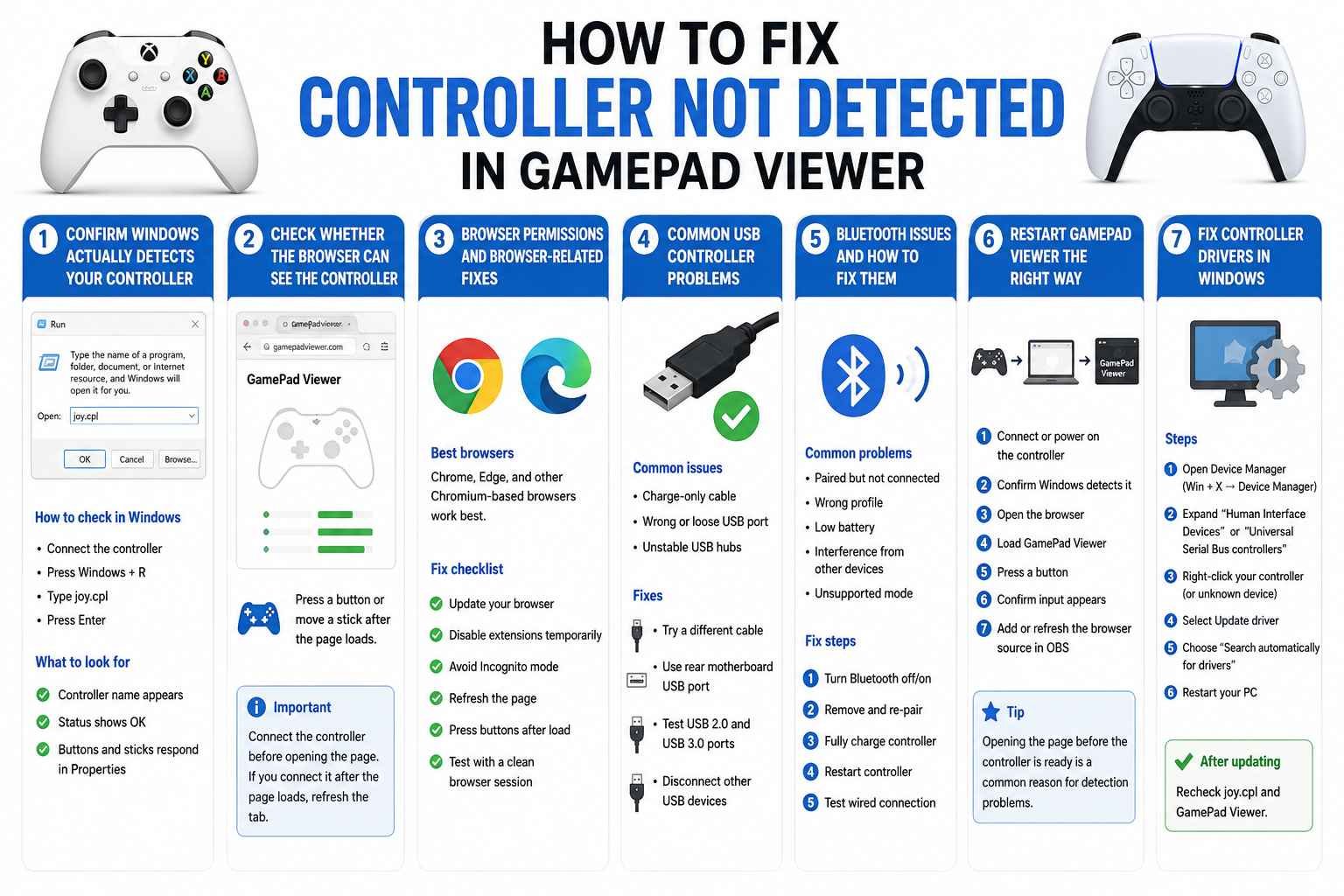 Troubleshooting
How to Fix Controller Not Detected in Gamepad Viewer
The quick checks to run first, then the deeper fixes if your controller still will not show up on the page.
Read Guide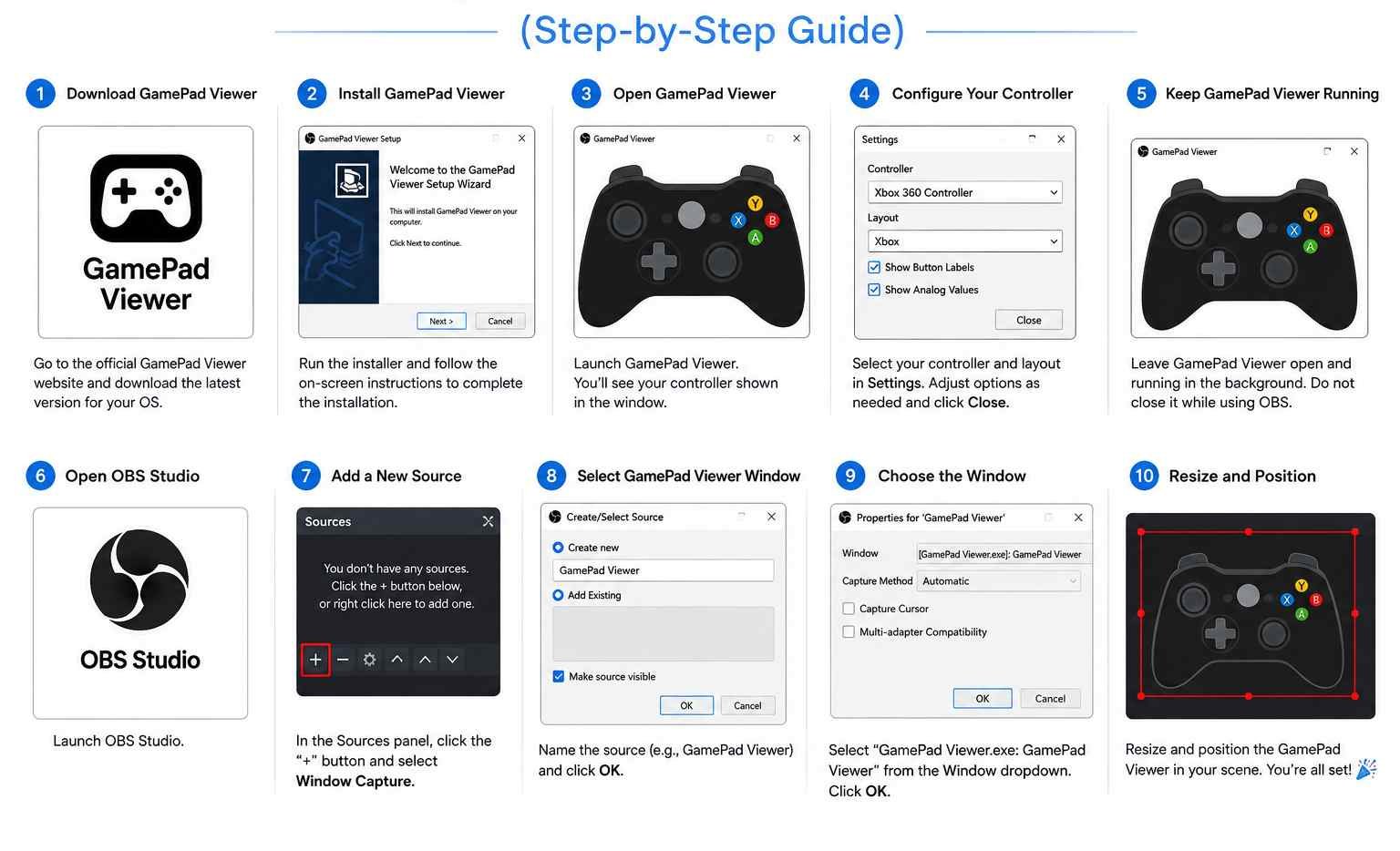 OBS Setup
How to Set Up Gamepad Viewer for OBS Studio
A full step by step walkthrough, plus the common mistakes people make the first time they add it to a scene.
Read Guide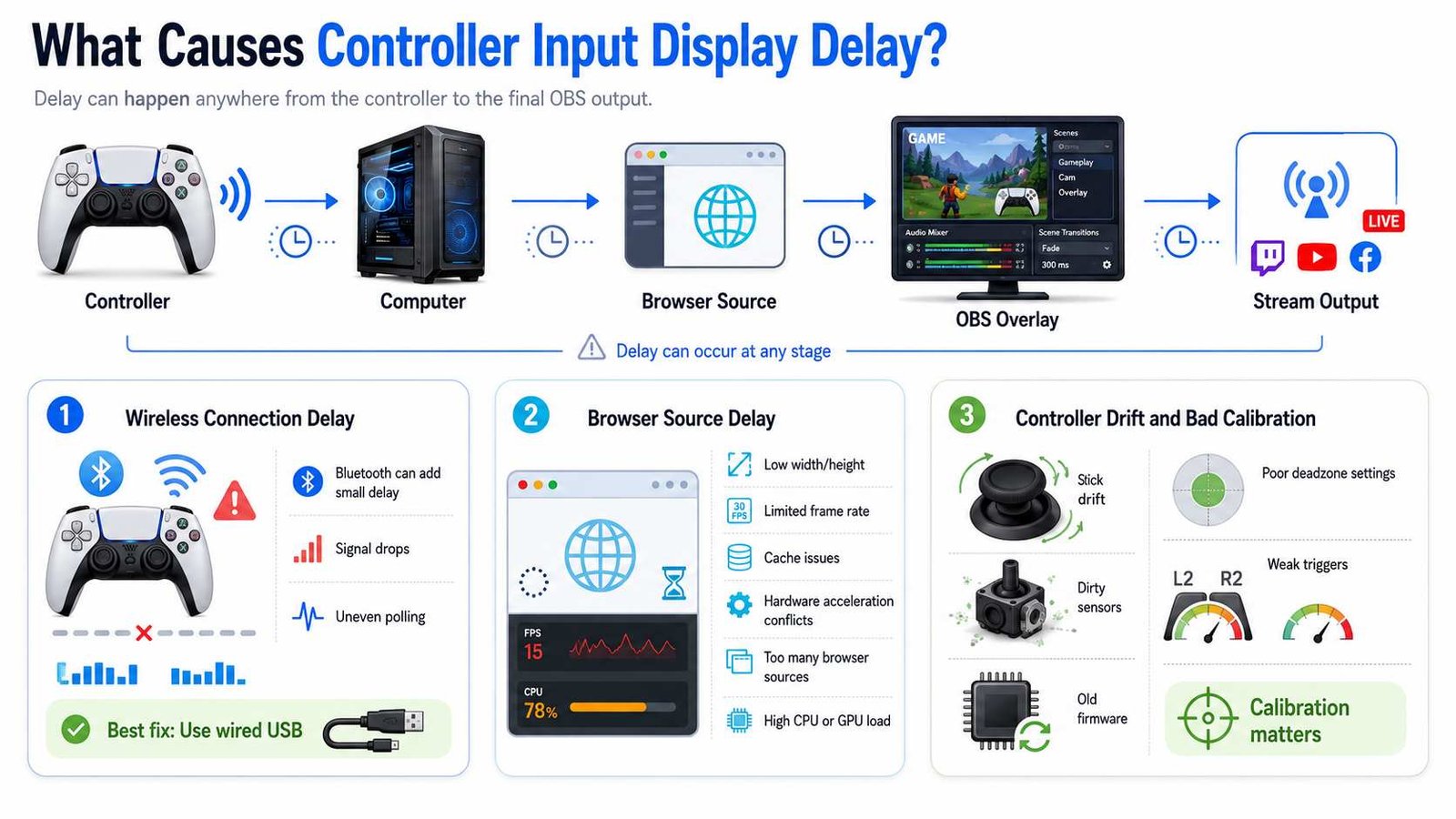 Settings
Best Controller Settings for Smooth Input Display
What actually causes visible input delay, and the settings that get the display feeling instant again.
Read GuideQuestions People Actually Ask
The same handful of questions come up again and again, so here they are answered properly, without the corporate hedging.
It genuinely does. Pair your Bluetooth controller through your phone's own settings first, the same way you'd pair headphones, then just open this page in your browser. Chrome and Edge on Android handle it natively, and if you're on an iPhone running iOS 16 or newer, Safari works too. No app store detour required.
There isn't one. No locked features waiting behind a paywall, no "create an account to unlock drift detection," nothing. Rumble testing, deadzone calibration, log export, all of it, free, and we're not running ads on the page either. We'd rather you trust the tool than monetize your patience.
Nope, and that's by design. Your browser already speaks the language controllers use, it's called the Gamepad API and it's been quietly built into Chrome, Firefox, Edge, and Safari for years. Plug your controller in, give it a press, and you're already testing. No driver hunting, no extension store.
This trips almost everyone up the first time, so don't worry. Browsers stay completely silent about a controller until it sends an actual button press, simply being plugged in isn't enough. Press anything once. Still nothing? Check three things in order: is it paired in your system's own settings, is your USB cable actually a data cable and not a charge-only one, and are you on a modern browser like Chrome, Edge, Firefox, or Safari 16+.
You absolutely can, and it's one of the main reasons this exists. The background is genuinely transparent, not just visually similar to your scene, so the page drops straight into an OBS Browser Source and resizes to fit wherever you've got room. It keeps updating live while you play, so your viewers see every input the same moment you make it.
No, and we'd rather be boring and clear about this than vague. Everything happens inside your own browser, on your own device. Nothing about what you press, how hard, or how often ever touches a server. Even the log file you can export is built and saved locally, we never see it.
Honestly, maybe. Stick drift is when your analog stick reports movement even though you're not touching it, usually because the little potentiometer inside has worn down from regular use. This tool reads the raw stick position with the deadzone stripped away, and if it sees that resting position drifting past a tight threshold, it'll flag it clearly with an orange Drift Detected badge so you're not just guessing.
Yes, and this is genuinely one of the more useful things people do with it. Hit Export under the activity log and you'll get a timestamped text file with your device name, total presses, and the complete record of every input during your session. It's exactly the kind of concrete evidence a manufacturer takes seriously instead of just your word that "it feels broken."