
A controller overlay can make a gaming stream much easier to watch. It shows your button presses, stick movement, trigger input, and controller timing directly on the screen. For many games, that small overlay explains more than a long sentence ever could.
If you play Rocket League, Fortnite, EA Sports FC, Call of Duty, Tekken, Street Fighter, Elden Ring, racing games, platformers, or speedrun games, viewers often want to know what you are pressing. They want to see how you control the game, not just the final result on screen.
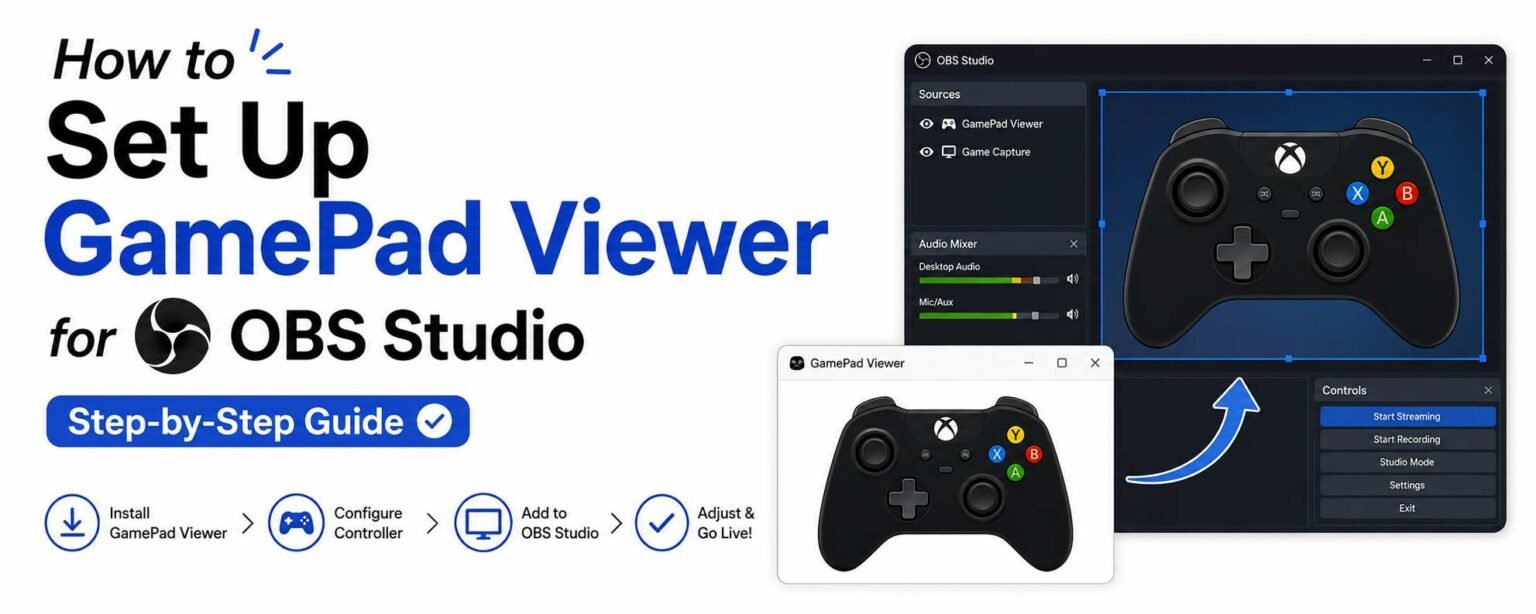
That is why many creators search for How to Set Up GamePad Viewer for OBS Studio (Step-by-Step Guide). GamePad Viewer gives you a live controller display, and OBS Studio lets you place that display on top of your gameplay as a clean overlay.
What Is GamePad Viewer?
GamePad Viewer is a browser-based controller overlay tool. It reads your controller input and displays it as a visual gamepad on screen. When you press a button, move a stick, or pull a trigger, the overlay moves with your input.
You do not need a camera pointed at your hands. You do not need to show your real controller. Instead, viewers see a clean digital controller overlay.
This is useful because many gaming actions are hard to understand from gameplay alone. A viewer might see a clean aerial in Rocket League, a perfect combo in Tekken, or a tight racing line in Forza, but they may not understand the input behind it. A controller overlay helps fill that gap.
Why GamePad Viewer Works Well With OBS Studio
Many streamers use OBS Studio because it lets you build scenes with different sources. You can add your game capture, webcam, microphone, alerts, chat, images, browser pages, and overlays.
GamePad Viewer works inside OBS as a Browser Source. That means OBS loads the GamePad Viewer link like a small web page inside your stream layout.
This setup is simple, but it still needs the right settings. If the overlay is too large, it can block gameplay. If it is too small, viewers cannot read it. If it is placed badly, it can cover your HUD, map, health bar, ammo count, or match timer.
A good controller overlay should support the stream, not distract from it.
Before You Start
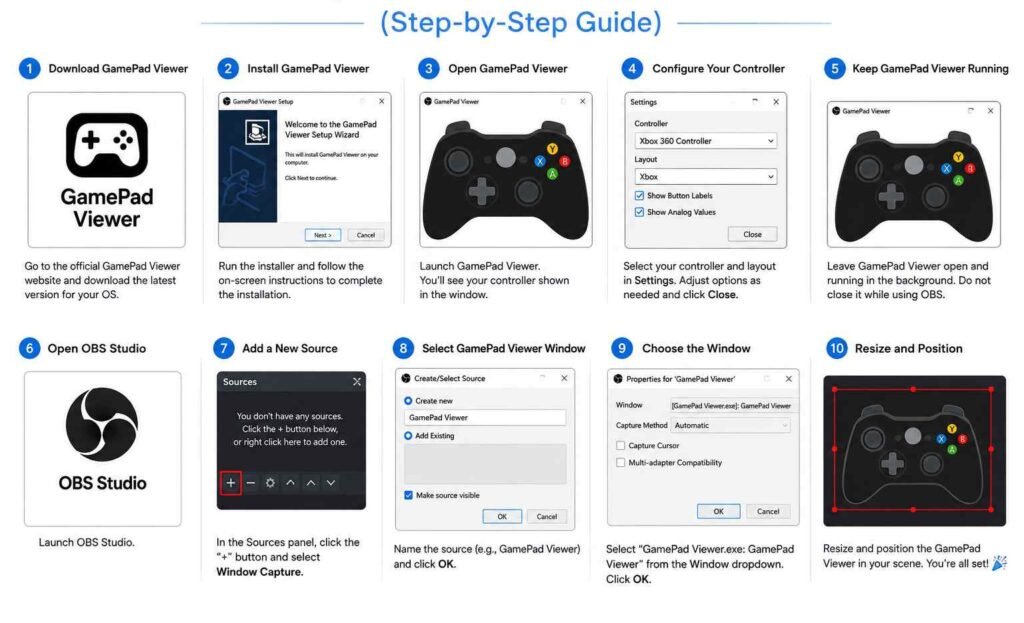
Before adding GamePad Viewer to OBS, make sure your controller is already working on your PC.
You should check these things first:
| What to Check | Why It Matters |
|---|---|
| Controller connection | OBS cannot show input if the browser cannot read your controller |
| Browser support | GamePad Viewer works through a browser, so test it before adding it to OBS |
| Correct controller number | Some systems read controllers as Player 1, Player 2, or another slot |
| Game compatibility | Some games take full control of controller input |
| OBS scene layout | You need space for the overlay without blocking important game details |
For most players, an Xbox controller, PlayStation controller, or common PC controller will work. Wired controllers are usually easier to set up because they have less connection trouble. Bluetooth can work too, but it may sometimes add delay or connection issues.
Step 1: Connect Your Controller to Your PC
Start by connecting your controller before opening the final overlay in OBS.
For a wired controller, plug it into your PC with a USB cable. Wait a few seconds for Windows to detect it. For a Bluetooth controller, pair it through your PC Bluetooth settings and make sure it shows as connected.
After that, press a few buttons and move both sticks. This helps your system wake up the controller.
A simple habit is to test your controller before every stream. This can save you from starting a stream and then realizing that the overlay is not moving.
Step 2: Open GamePad Viewer in Your Browser
Open GamePad Viewer in a browser such as Chrome, Edge, or another modern browser.
Once the page loads, press a button on your controller. The site should detect your gamepad. If it does not detect it right away, click on the page once and press the button again.
This matters because some browsers do not read controller input until the page is active. It is a small detail, but it causes a lot of confusion for new streamers.
If the controller reacts on the GamePad Viewer page, you are ready to build the overlay link for OBS.
Step 3: Choose the Right Controller Skin
GamePad Viewer offers different controller skins. Pick one that matches the controller style your viewers expect.
For example:
| Controller Type | Good Skin Choice |
|---|---|
| Xbox controller | Xbox-style skin |
| PlayStation controller | DualShock or DualSense-style skin |
| Nintendo-style controller | A skin that matches the button layout |
| Fighting game content | A clean skin with readable buttons |
| Racing content | A layout where triggers and sticks are easy to see |
Do not choose a skin only because it looks cool. Choose one that makes your inputs easy to read.
For a fast game, simple is better. Viewers only get a small moment to see each input, so a clean overlay is more useful than a crowded one.
Step 4: Generate the GamePad Viewer URL
GamePad Viewer lets you generate a custom URL for your overlay. This URL is what you will paste into OBS Studio.
When generating the URL, check the main options:
| Setting | What It Does |
|---|---|
| Player number | Chooses which connected controller to show |
| Skin | Changes the controller style |
| Scale | Makes the controller bigger or smaller |
| Deadzone | Helps control stick movement sensitivity |
| Delay | Can adjust timing if the overlay feels ahead or behind |
| Custom CSS | Lets you change the visual style further |
For most streamers, Player 1 is the right choice. If your overlay does not move, try another player number. This is common when multiple controllers, virtual controllers, or controller software are active.
Copy the generated URL when the overlay looks right in your browser.
Step 5: Open OBS Studio
Now open OBS Studio.
Choose the scene where you want the controller overlay to appear. This might be your main gameplay scene, recording scene, tutorial scene, or speedrun scene.
Make sure your gameplay source is already added. The controller overlay should be placed above the game capture source in the OBS source list. If it is below the game capture, it may be hidden behind the gameplay.
A good source order usually looks like this:
| Source Order | Example |
|---|---|
| Top | Alerts, webcam frame, controller overlay |
| Middle | Webcam, chat box, labels |
| Bottom | Game Capture or Display Capture |
Think of OBS sources like layers. The higher source appears on top.
Step 6: Add GamePad Viewer as a Browser Source
In OBS Studio, go to the Sources box.
Click the plus button and choose Browser. Name it something clear, such as:
GamePad Viewer Overlay
Paste your GamePad Viewer URL into the URL field.
Set the width and height. A good starting point is:
| Setting | Recommended Start |
|---|---|
| Width | 800 |
| Height | 600 |
These numbers are not final. You can resize the overlay after adding it to your scene.
Click OK, then wait a moment. Your controller overlay should appear inside OBS.
Now press buttons on your controller. If the overlay reacts, the main setup is working.
Step 7: Resize the Overlay in OBS
Click the GamePad Viewer source in OBS. Red handles should appear around the overlay.
Drag the corners to resize it. Hold Shift only if you need free resizing, but for most cases, keep the shape normal so the controller does not look stretched.
A good controller overlay size depends on your stream resolution.
| Stream Resolution | Suggested Overlay Size |
|---|---|
| 1920×1080 | Small corner overlay, around 15 to 25 percent of screen width |
| 1280×720 | Slightly larger than you think, because viewers may watch on phones |
| Vertical content | Place it near the lower middle or lower side |
| Tutorial content | Make it larger when explaining inputs |
Many viewers watch streams on mobile. A controller overlay that looks fine on your monitor may be too small on a phone screen. Record a short test clip and watch it on your phone before finalizing the size.
Step 8: Place the Overlay Where It Helps Viewers
The best placement depends on the game.
Do not place the controller overlay in a random corner. Look at the game HUD first.
For example:
| Game Type | Good Overlay Placement |
|---|---|
| Rocket League | Bottom left or bottom right, away from boost meter |
| Fighting games | Bottom center or lower side, away from health bars |
| FPS games | Lower corner, away from ammo and minimap |
| Racing games | Bottom corner, away from speedometer |
| Sports games | Side corner, away from score and player indicators |
| Platformers | Lower corner, away from character and hazards |
The overlay should answer a question, not create a new problem. If viewers have to choose between seeing your inputs and seeing the match timer, the overlay is in the wrong place.
Step 9: Make the Background Transparent
A good GamePad Viewer overlay should usually have a transparent background. This makes it look like part of your stream instead of a box pasted on top.
If the overlay has a visible background, open the Browser Source settings in OBS and check the custom CSS area.
You can use simple CSS like this:
body { background-color: rgba(0, 0, 0, 0); margin: 0; overflow: hidden; }
This helps remove unwanted background space around the overlay.
Keep CSS changes simple unless you know exactly what you are changing. Too much custom styling can make the overlay harder to read.
Step 10: Lock the Overlay Position
Once your overlay is sized and placed correctly, lock it in OBS.
Click the lock icon next to the GamePad Viewer source.
This stops you from accidentally moving it during stream setup. Many streamers forget this and later drag the overlay while trying to adjust another source.
Small setup habits like this make your OBS scenes feel more professional.
Best GamePad Viewer Settings for Streaming
There is no single perfect setting for every stream. The best setup depends on your game, layout, and audience.
Still, these settings work well for most creators:
| Setting | Best Practical Choice |
|---|---|
| Skin | Clean controller skin that matches your real controller |
| Size | Big enough for mobile viewers |
| Position | Away from HUD and facecam |
| Player number | Usually Player 1 |
| Deadzone | Use only if stick movement looks too sensitive |
| Delay | Adjust only if overlay timing feels off |
| Background | Transparent |
| OBS source order | Above gameplay source |
Do not overdesign the overlay. The goal is clarity. Viewers should understand your inputs quickly without staring at the overlay for too long.
When Should You Use a Controller Overlay?
A controller overlay is not needed for every type of gaming content. It works best when inputs add value.
You should use GamePad Viewer when:
| Content Type | Why It Helps |
|---|---|
| Tutorials | Viewers can copy your inputs |
| Ranked gameplay | Shows how you react under pressure |
| Speedruns | Helps prove and explain input timing |
| Fighting games | Makes combos easier to understand |
| Racing games | Shows throttle, brake, and steering control |
| Controller reviews | Shows how the controller responds |
| Skill guides | Makes movement and mechanics easier to follow |
For casual story games, the overlay may not always be needed. If the game is more about story than input skill, the controller display might distract from the experience.
Use it when it helps the viewer learn something.
Common Mistakes When Setting Up GamePad Viewer in OBS
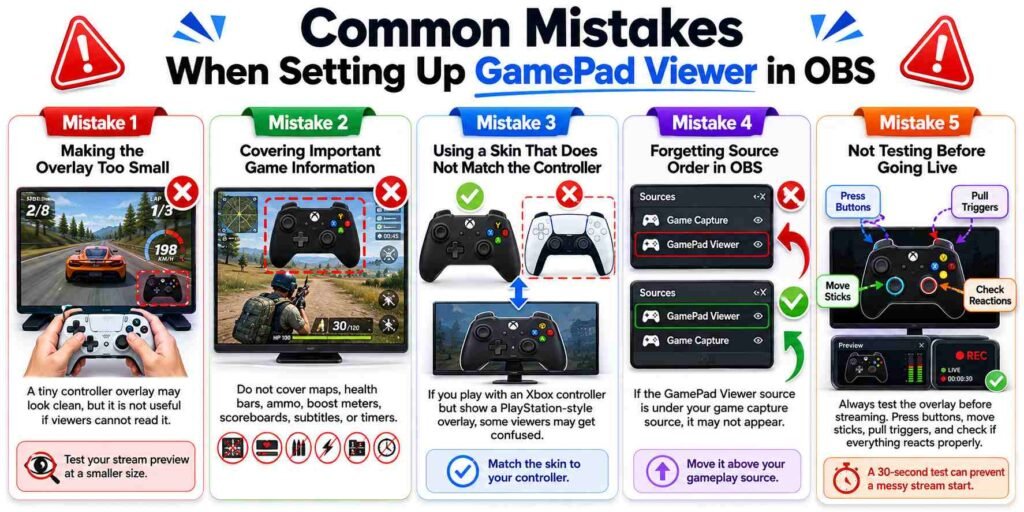
Many setup problems come from small mistakes. Here are the ones to avoid.
Mistake 1: Making the Overlay Too Small
A tiny controller overlay may look clean, but it is not useful if viewers cannot read it. Test your stream preview at a smaller size. This helps you understand what mobile viewers will see.
Mistake 2: Covering Important Game Information
Do not cover maps, health bars, ammo, boost meters, scoreboards, subtitles, or timers. These are part of the viewing experience.
Mistake 3: Using a Skin That Does Not Match the Controller
If you play with an Xbox controller but show a PlayStation-style overlay, some viewers may get confused. Matching the skin to your controller makes the stream clearer.
Mistake 4: Forgetting Source Order in OBS
If the GamePad Viewer source is under your game capture source, it may not appear. Move it above your gameplay source.
Mistake 5: Not Testing Before Going Live
Always test the overlay before streaming. Press buttons, move sticks, pull triggers, and check if everything reacts properly.
A 30-second test can prevent a messy stream start.
Troubleshooting: GamePad Viewer Not Working in OBS
If GamePad Viewer does not work in OBS, do not panic. Most problems are easy to fix.
Controller Works in Game but Not in GamePad Viewer
This often means the browser is not reading the controller.
Try this:
| Fix | What to Do |
|---|---|
| Click the browser page | Some browsers need the page active before reading input |
| Press controller buttons | This wakes up the gamepad API |
| Reconnect the controller | Unplug and plug it back in |
| Restart the browser | A fresh browser session can fix detection |
| Try another USB port | Some ports behave differently |
| Close controller software | Steam Input or virtual controller apps may interfere |
Overlay Appears, But Buttons Do Not Move
Open your GamePad Viewer URL in a normal browser first. If it does not move there, OBS is not the problem.
Check the player number in the URL settings. Your controller may be assigned as Player 2 or another slot.
Also, close extra tools that create virtual controllers. Some controller apps can make GamePad Viewer read the wrong input device.
Overlay Is Hidden in OBS
Look at your OBS Sources list. Move GamePad Viewer above your game capture source.
Also, check that the source is visible. The eye icon next to the source should be turned on.
Overlay Has a White or Black Box
This is usually a background or CSS issue.
Use a transparent background setup and add simple CSS in the Browser Source settings. Also, check whether the selected skin has a built-in background.
Overlay Is Delayed
A small delay is normal, especially if your controller is wireless or your PC is under load.
Try these fixes:
| Problem | Possible Fix |
|---|---|
| Bluetooth delay | Use a wired connection |
| OBS lag | Lower heavy scene effects |
| Browser source lag | Refresh the source |
| PC load is high | Close unused programs |
| Stream encoder is overloaded | Lower recording or stream settings |
OBS Shows the Wrong Controller
This can happen if you have multiple controllers connected or if Steam Input creates a virtual controller.
Try disconnecting extra controllers, closing controller remapping tools, and setting the correct player number in GamePad Viewer.
How to Make the Overlay Look More Professional
A controller overlay should match your stream style without becoming too flashy.
Use these simple design rules:
| Rule | Why It Works |
|---|---|
| Keep it clean | Viewers understand it faster |
| Use enough size | Mobile viewers can see it |
| Avoid too many effects | Fast inputs need clear visuals |
| Match your controller | Reduces confusion |
| Keep it away from your facecam | Prevents layout clutter |
| Test with actual gameplay | Menus do not show real layout problems |
Do a short recording with real gameplay. Watch it back like a viewer. Ask yourself:
- Can I see the controller clearly?
- Does it block anything important?
- Does it look like part of the layout?
- Can I understand fast inputs?
If the answer is no, adjust the size and position.
Best OBS Scene Ideas for GamePad Viewer
You do not need to use the same overlay layout for every scene. Different content needs different scenes.
Here are some useful OBS scene ideas:
| Scene Type | Overlay Setup |
|---|---|
| Main gameplay scene | Small controller overlay in corner |
| Tutorial scene | Larger controller overlay for teaching |
| Speedrun scene | Overlay near timer but not covering it |
| Controller test scene | Large overlay with gamepad tester or input notes |
| Recording-only scene | Clean layout without chat distractions |
| Shorts or vertical scene | Bigger overlay near lower screen area |
A tutorial scene should make the controller easier to see. A ranked gameplay scene should keep the gameplay clean. A speedrun scene should balance timer, game, and inputs.
One layout does not fit every video.
Game Examples Where GamePad Viewer Adds Real Value
Rocket League
A controller overlay is very useful for Rocket League because viewers can see boost, jump, air roll, throttle, brake, and stick direction. This makes aerial control and recoveries easier to understand.
Fighting Games
For games like Tekken, Street Fighter, Mortal Kombat, and Guilty Gear, inputs matter a lot. A viewer can see timing, button presses, and movement choices during combos.
Racing Games
In racing games, the overlay can show steering, throttle, brake, and trigger control. This helps viewers understand how smooth inputs affect corners and speed.
FPS Games
For controller-based FPS gameplay, the overlay can show aim movement, trigger use, jumping, crouching, and ability buttons. It is useful for educational content, but keep it away from the minimap and ammo display.
Speedruns
Speedrun viewers often care about inputs. A controller overlay can make the run feel more transparent and easier to study.
Should You Use GamePad Viewer for YouTube Videos?
Yes, GamePad Viewer is useful for YouTube videos when the video teaches gameplay or reviews controller performance.
It works well for:
| YouTube Content | Value |
|---|---|
| How-to guides | Viewers can follow the inputs |
| Controller reviews | Shows real button and stick response |
| Gameplay breakdowns | Makes decisions easier to explain |
| Shorts | Adds visual proof of input skill |
| Challenge videos | Shows that inputs are real |
| Speedrun analysis | Helps viewers study timing |
For regular entertainment videos, use it only if it improves the viewing experience. Do not add it just because other creators use it.
Should You Use GamePad Viewer for Twitch Streams?
GamePad Viewer can work very well on Twitch because live viewers often ask questions about settings and controls.
For example, viewers may ask:
- What button do you use for air roll?
- Are you playing claw?
- Are you using a controller or a keyboard?
- How do you time that combo?
- What are your trigger inputs?
A controller overlay can answer those questions without stopping the stream.
It also makes your stream feel more open and helpful, especially if your audience wants to learn from your gameplay.
Simple Setup Checklist
Before going live or recording, run through this checklist:
| Check | Done |
|---|---|
| Controller is connected | |
| Controller works in browser | |
| GamePad Viewer URL is generated | |
| Browser Source is added in OBS | |
| Overlay is above gameplay source | |
| Overlay background is transparent | |
| Overlay is not covering HUD | |
| Buttons and sticks move correctly | |
| Scene is locked | |
| Test recording looks clean |
This checklist is simple, but it catches most problems before your stream starts.
Final Thoughts
Setting up GamePad Viewer for OBS Studio is not hard, but doing it well takes more than pasting a link into OBS. You need the right controller skin, the right player number, a clean Browser Source setup, smart overlay placement, and a quick test before recording or streaming.
A good controller overlay helps viewers understand your gameplay. It can make tutorials clearer, ranked matches more interesting, speedruns more transparent, and controller reviews more useful.
The best setup is not always the flashiest one. It is the one viewers can read quickly while still enjoying the gameplay.