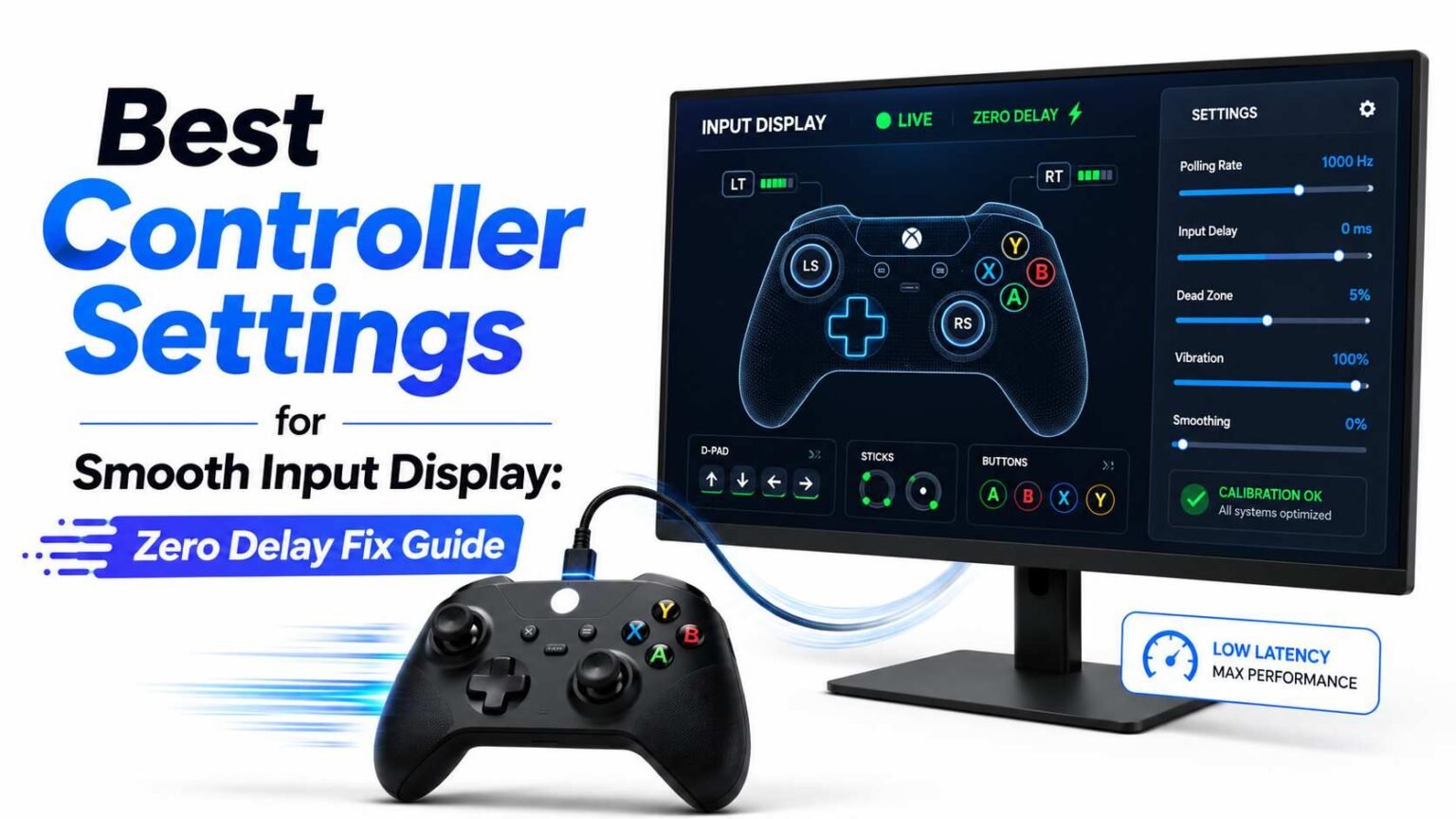

A controller overlay should feel instant. When you press a button, move a stick, or pull a trigger, the input display should react smoothly on screen. If it looks delayed, shaky, or uneven, viewers may think your controller, stream, or gameplay setup is broken.
The good news is that most input delay problems are fixable. The issue is not always the controller itself. Delay can come from Bluetooth, USB ports, browser source settings, OBS performance, Gamepad Viewer settings, deadzones, stick drift, refresh rate, or even too many background apps.
Why Smooth Input Display Matters
A smooth input display is useful for streamers, competitive players, tutorial creators, speedrunners, fighting game players, racing players, and anyone who wants viewers to see real controller actions.
For example, in Rocket League, a delayed stick display can make aerial control look wrong. In fighting games, delayed button input can make combos harder to follow. In racing games, shaky trigger input can make throttle control look messy. In FPS games, a drifting right stick can make the overlay move even when you are not touching it.
A good input display should show three things clearly:
| Input Area | What Should Happen | Common Problem |
|---|---|---|
| Buttons | Presses appear instantly | Button display feels late |
| Analog sticks | Movement looks smooth and stable | Stick shakes or drifts |
| Triggers | Pressure changes cleanly | Trigger jumps from low to high |
| D-pad | Directions appear correctly | Diagonal input shows incorrectly |
| Overlay animation | Display looks clean on stream | Overlay stutters in OBS |
Smooth input display is not just about looks. It helps viewers understand your gameplay better.
What Causes Controller Input Display Delay?
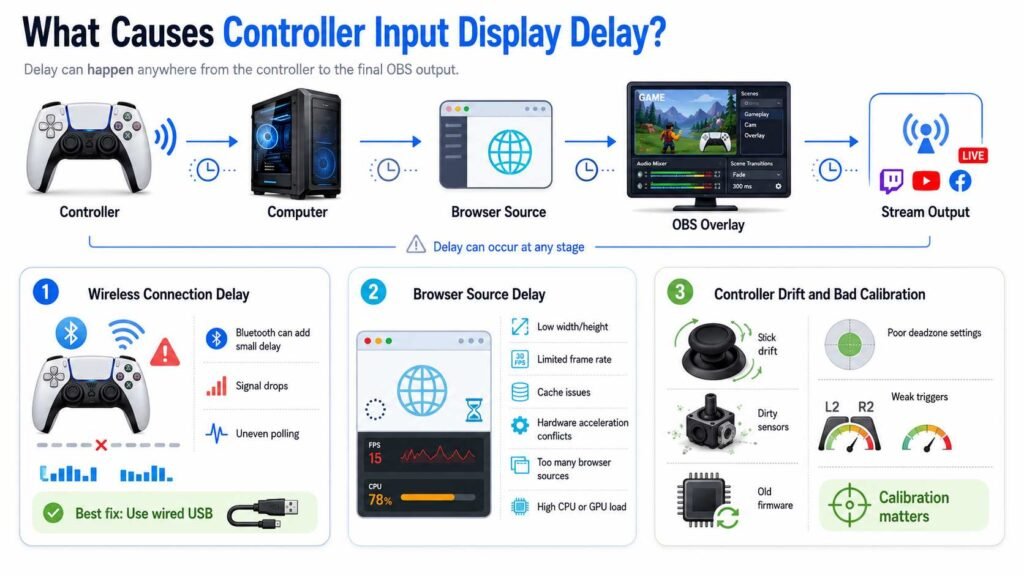
Input display delay usually comes from one or more parts of the setup. Your controller sends input to the computer, the browser reads it, the overlay shows it, OBS captures it, and then the video is rendered or streamed. If any part is slow, the overlay can feel delayed.
Wireless Connection Delay
Bluetooth can work well, but it is not always the best choice for input display. Wireless controllers may have small delays, signal drops, or uneven polling. This can make the input overlay feel slightly behind your real gameplay.
For the lowest delay, use a wired USB connection when possible. A wired connection is usually more stable for streaming and recording because it removes wireless signal issues.
Browser Source Delay
Most controller overlays run inside a browser source. If the browser source is not set correctly, the overlay may lag, freeze, or update unevenly.
Common browser source problems include:
- Too low width and height
- Limited frame rate
- Browser cache issues
- Hardware acceleration conflicts
- Too many active browser sources
- OBS is running at high CPU or GPU load
Controller Drift and Bad Calibration
Sometimes the display is not delayed. It only looks bad because the controller is sending unstable input. Stick drift, poor deadzone settings, dirty sensors, weak triggers, or old firmware can cause the overlay to shake or move by itself.
This is why calibration is important before changing OBS settings.
Best Controller Settings for Smooth Input Display
The best controller settings depend on your device, but these settings work well for most players using GamePad Viewer, OBS Studio, or similar controller overlay tools.
| Setting | Recommended Choice | Why It Helps |
|---|---|---|
| Connection | Wired USB | Gives more stable input than Bluetooth |
| Controller firmware | Updated | Fixes bugs and improves compatibility |
| Deadzone | Small but stable | Stops stick drift without making input feel slow |
| Stick sensitivity | Default or natural | Keeps display accurate |
| Trigger range | Full range enabled | Shows smooth pressure changes |
| Vibration | Off while streaming | Can reduce unwanted movement and distraction |
| USB port | Direct motherboard port | Avoids weak hubs and unstable connection |
| Background apps | Close extra apps | Gives OBS and browser source more resources |
These settings are a strong starting point. Do not copy extreme settings from another player unless you know why they use them. Smooth input display is about accuracy first, not only speed.
Use Wired USB for the Cleanest Input
For a zero delay input display setup, wired USB is usually the best option. It gives your computer a direct signal from the controller. This is helpful for fast games where viewers need to see inputs clearly.
Use a good quality cable. Some USB cables only charge and do not send data properly. If your controller is not detected, try another cable before changing software settings.
Also, avoid loose USB ports. A weak connection can cause random disconnects, input drops, or overlay freezing.
Calibrate Your Controller Before Streaming
Calibration helps your controller send clean input data. Without calibration, your overlay may show movement even when your hands are off the controller.
Check for Stick Drift
Open your controller tester or GamePad Viewer page. Leave the controller untouched. If the analog stick moves by itself, you have drift.
Small movement is common on older controllers. You can fix this by increasing the deadzone slightly. But do not set the deadzone too high. A large deadzone makes small stick movements disappear from the input display.
Set a Stable Deadzone
A good deadzone should stop unwanted movement while still showing real stick control. Start small, then increase only if drift remains.
For most controllers:
Note: Use a deadzone that removes drift but still shows gentle stick movement. If your overlay feels slow after increasing deadzone, the setting is too high.
Test Triggers and Buttons
Triggers should move smoothly from zero to full pressure. If a trigger jumps suddenly, it may need calibration or cleaning. Buttons should appear instantly and disappear when released. If a button sticks on the overlay, the controller or browser page may need refreshing.
Best Browser Settings for Controller Overlay
Browser settings matter because most input overlays use browser technology to read and show controller movement.
For OBS Studio, add your controller overlay as a Browser Source. Use a clean overlay URL and set the source size properly. Do not make the browser source tiny and stretch it later. A stretched overlay can look blurry or uneven.
Recommended OBS Browser Source Settings
| Browser Source Setting | Best Option | Extra Tip |
|---|---|---|
| Width | 1920 | Use full HD if your canvas is 1080p |
| Height | 1080 | Keeps overlay sharp |
| FPS | Match OBS FPS | Use 60 FPS for smooth streams |
| Shutdown source when not visible | Enabled | Saves resources when hidden |
| Refresh browser when scene becomes active | Enabled | Helps prevent frozen input |
| Custom CSS | Use only if needed | Bad CSS can slow the overlay |
| Cache | Refresh when issues appear | Fixes stuck or outdated overlays |
| Hardware acceleration | Test both on and off | Best option depends on your system |
For most streamers, 1920 by 1080 at 60 FPS works well. If your computer is weak, use a smaller overlay size but keep it sharp enough for viewers.
OBS Settings That Affect Input Display Smoothness
Even if your controller is perfect, OBS can still make the display look delayed. If OBS is overloaded, every source can stutter, including your controller overlay.
Match OBS FPS With Your Content
If you stream at 60 FPS, your input display should also update smoothly at 60 FPS. If your overlay runs lower than your stream frame rate, the input may look choppy.
Go to OBS video settings and check your common FPS value. For most gaming content, 60 FPS is the best choice. For slower content, 30 FPS can work, but fast controller movement will look less smooth.
Keep OBS From Overloading
OBS overload causes frame drops, skipped frames, and delayed sources. If your input overlay stutters, check OBS stats.
Lower these settings if needed:
- Output resolution
- Game capture load
- Recording bitrate
- Extra browser sources
- Heavy animated overlays
- Background apps
- Preview window performance
Your input display does not need fancy animation to look professional. A simple clean overlay usually performs better.
How to Fix Zero-Delay Issues Step by Step
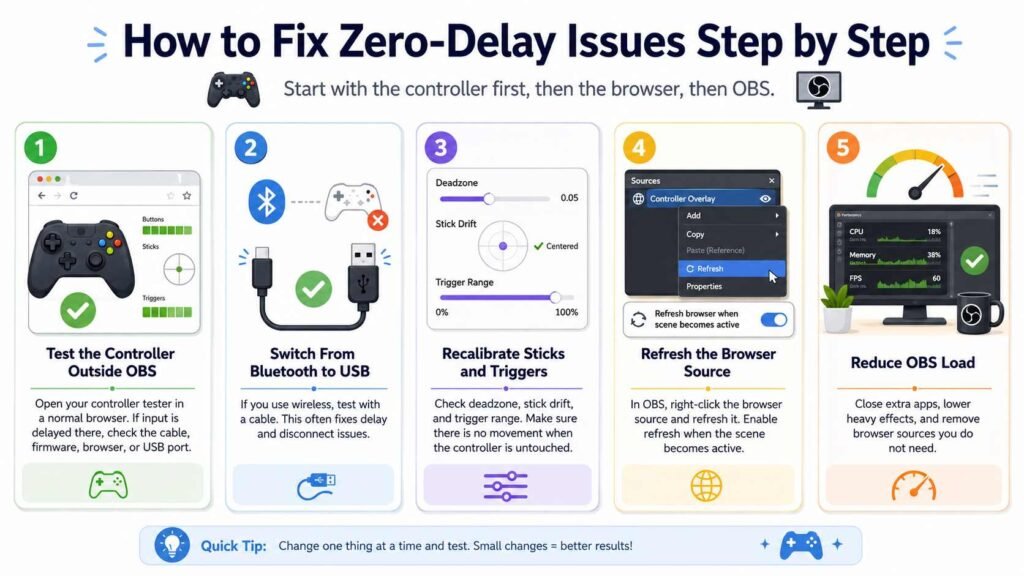
Start with the controller first, then move to the browser, then OBS. This saves time because you will know where the problem begins.
Step 1: Test the Controller Outside OBS
Open your controller tester in a normal browser. Press buttons and move sticks. If the input is delayed there, the issue is not OBS. Check the cable, controller firmware, browser, or USB port.
Step 2: Switch From Bluetooth to USB
Suppose you are using wireless, test with a cable. This one change fixes many delay and disconnect issues.
Step 3: Recalibrate Sticks and Triggers
Check deadzone, stick drift, and trigger range. Make sure the overlay is not showing movement when the controller is untouched.
Step 4: Refresh the Browser Source
In OBS, right-click the browser source and refresh it. Also, enable refresh when the scene becomes active. This helps when the overlay freezes after switching scenes.
Step 5: Reduce OBS Load
If the overlay is still choppy, OBS may be overloaded. Close extra apps, lower heavy effects, and remove browser sources you do not need.
Best Settings for Different Controller Types
Xbox controllers usually work well on Windows with USB. They are easy to detect and often need less setup.
PlayStation controllers can also work well, but some games and overlays may detect them differently depending on the software. If your buttons show incorrect labels, check the overlay layout settings.
Nintendo Switch Pro controllers can work, but they may need extra setup on some systems. Wired mode is better when using an input overlay for recording or streaming.
Generic controllers can be fine, but quality varies. If inputs appear wrong, test the controller in another browser or controller tester before changing OBS settings.
Common Mistakes That Make Input Display Worse
Many players try to fix the input display delay by changing too many settings at once. This makes the problem harder to track.
Avoid these mistakes:
- Using Bluetooth while expecting a perfect zero delay
- Setting deadzone too high
- Running too many browser overlays in OBS
- Using a low quality USB cable
- Stretching a small overlay source
- Ignoring stick drift
- Streaming at 60 FPS while OBS is overloaded
- Using outdated controller firmware
- Leaving vibration on during sensitive input display tests
- Small changes usually work better than extreme changes.
Final Zero Delay Checklist
Before recording or streaming, do a short input display test. Move both sticks, press every button, test both triggers, and switch scenes in OBS. Watch the overlay carefully.
Your setup is ready when:
- Buttons appear instantly
- Sticks return to center
- Triggers move smoothly
- No random input appears
- OBS stats show no major dropped or skipped frames
- The browser source does not freeze after scene changes
- The overlay looks sharp and easy to read
Conclusion
The best controller settings for smooth input display are not about one magic option. A clean zero delay setup comes from a stable wired connection, proper calibration, smart deadzone settings, optimized browser source settings, and a healthy OBS setup.
Start with USB, check calibration, remove stick drift, match your browser source with OBS FPS, and keep your scene clean. Once these basics are correct, your controller overlay will look smoother, react faster, and give viewers a better understanding of your gameplay.
For streamers, tutorial creators, and competitive players, smooth input display makes the content easier to follow and more professional. A clean controller overlay shows your real skill without delay, noise, or confusing movement.