
If you have ever wondered whether your pad will actually light up on screen before you start streaming, recording a button-input overlay, or hunting down a sticky trigger, this guide is for you. GamePad Viewer reads your controller straight from the browser, so the short answer is simple: if your operating system can see the controller, the viewer almost certainly can too.
Below you will find every major controller family that works with GamePad Viewer, how each one connects, the small quirks worth knowing about, and a clear path to follow when a controller refuses to appear: no downloads, no drivers, and no guesswork.
How the gamepad viewer recognizes your controller
GamePad Viewer is built on the browser Gamepad API, the same standard layer that web games use to read controller input. When you plug in a pad or pair it over Bluetooth and then press any button, the browser hands the controller over to the page. The viewer reads those button presses, trigger pressures, and stick positions in real time and draws them on screen. Because this happens inside the browser, nothing is installed on your machine, and your inputs never need to leave your device.
This is also why the tool is so forgiving across brands. The viewer does not care about the logo on your pad. It cares about whether your system already treats the device as a game controller. Xbox-style pads report through a layout that the browser labels as the standard mapping, which is why they tend to display perfectly with no setup at all.
What does ” supported really mean here?
Supported means the controller is detected, and its inputs are read and displayed. It does not mean the on-screen art is a pixel-perfect match for your exact model, since many pads share the same internal layout. A button that sits where the Xbox A button would be may register as that position, even on a PlayStation or Nintendo pad. The input is correct even when the printed label on your physical controller differs.
Quick compatibility overview
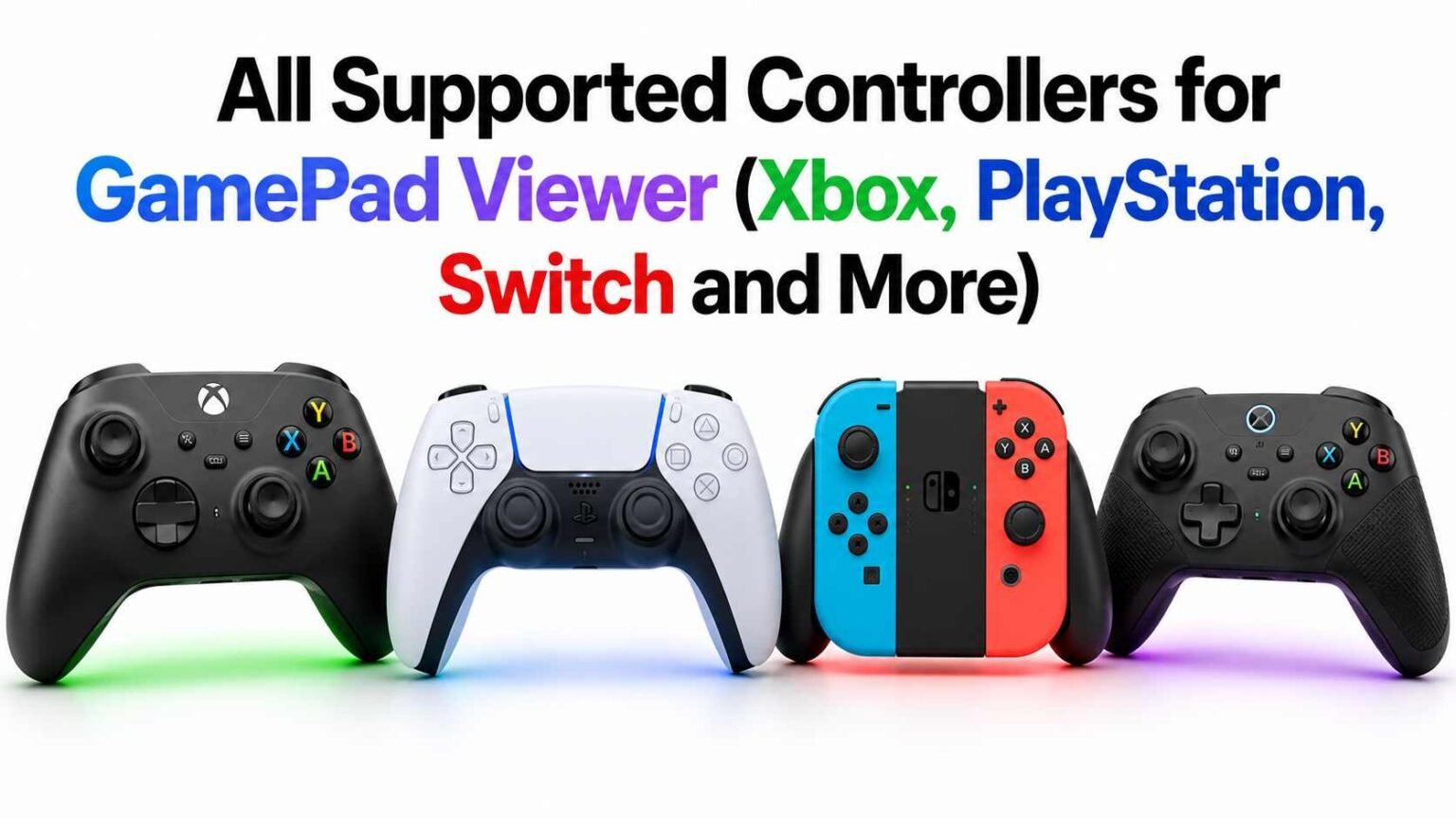
Here is the fast reference. Almost everything in the wired and Bluetooth controller world falls into one of these families, and the vast majority connect with zero configuration.
| Controller family | Example models | How it connects | Support |
|---|---|---|---|
| Xbox | Xbox 360, Xbox One, Xbox Series, Elite Series 2 | USB, Bluetooth | Full, plug and play |
| PlayStation | DualShock 4, DualSense, DualSense Edge | USB, Bluetooth | Full, plug and play |
| Nintendo Switch | Switch Pro Controller, Joy-Con | USB, Bluetooth | Full, labels/positions may differ |
| Third-party modern | 8BitDo, PowerA, Razer, GameSir | USB, Bluetooth | Full in XInput mode |
| PC legacy / generic | Logitech F310, DInput controllers | USB | Detected, mapping varies |
| Specialty controllers | Fight sticks, racing wheels | USB | Inputs and axes detected |
Supported Xbox controllers
Xbox pads are the smoothest experience on GamePad Viewer because they use the standard mapping the browser expects. The Xbox 360 controller, the Xbox One controller, the current Xbox Series pad, and the Elite Series 2 all show up instantly. Wired models connect through any data-capable USB cable, while the Xbox One controllers made from around 2016 onward and every Series controller add Bluetooth pairing for a cable-free setup.
Triggers display as analog pressure rather than simple on or off, so you can watch the exact travel of LT and RT, which is handy for diagnosing a worn or scratchy trigger. If you use an Elite pad, the back paddles map onto their assigned button outputs, so the viewer reflects whatever profile you have loaded onto the controller itself.
Tips for Xbox pads
If you game on Steam, close it before testing. Steam Input can quietly take over the controller and stop the browser from seeing raw presses. For wireless use, pair the pad to your computer through your normal Bluetooth settings first, then press a button so the viewer wakes it up.
Supported PlayStation controllers
PlayStation pads are first-class citizens here. The DualShock 4, the DualSense, and the DualSense Edge are all recognized over both USB and Bluetooth, and they report through the standard mapping just like an Xbox pad. That means the face buttons, shoulder buttons, analog triggers, sticks, and the directional pad all display cleanly.
The DualSense touchpad acts as a large clickable button, so a press registers even though finger tracking is not drawn on screen. The older DualShock 3 is a different story. It predates the modern controller standard, so while many systems still detect it, the mapping can land in unexpected places and may need manual interpretation. If you have the choice, a DualShock 4 or newer gives a far cleaner result.
Supported Nintendo Switch, controllers
The Switch Pro Controller is well supported over USB and Bluetooth and is a favorite for input overlays thanks to its comfortable layout and reliable wireless. One thing to expect: Nintendo places its A, B, X, and Y buttons in different physical spots than Xbox does. Because the viewer reads positions through the standard mapping, a button may appear under a label that does not match the letter printed on your pad. The press itself is accurate; the naming convention is simply Nintendo being Nintendo.
Joy-Con units can pair individually over Bluetooth and will be detected, although a single Joy-Con offers a limited button set compared with a full pad. For a complete on-screen layout, the Pro Controller is the better pick.
Other controllers that work
Plenty of pads live outside the big three, and most of them are happy to cooperate. Modern third-party controllers from brands like 8BitDo, PowerA, GameSir, and Razer usually include an XInput mode, often toggled with a switch or a button combination at startup. In that mode, they behave exactly like an Xbox pad and display flawlessly.
Classic PC controllers such as the Logitech F310 and F710 have a hardware switch between XInput and DInput. XInput is the friendlier choice for clean detection. Older DInput-only pads are still detected, but their buttons may map to different positions, so you may need to note which physical button triggers which on-screen element.
Specialty hardware works too. Arcade fight sticks register their buttons and stick directions, and racing wheels expose their steering axis along with pedal and paddle inputs, which makes the viewer a quick way to confirm a wheel or pedal set is alive before a race. Mobile clip-on controllers that present themselves to the system as a standard gamepad can also be read when used with a desktop browser.
Rule of thumb: if Windows, macOS, or Linux lists the device as a game controller, GamePad Viewer can read it. The viewer never adds support on top of the system; it simply reflects what your machine already sees.
Connecting by USB or Bluetooth
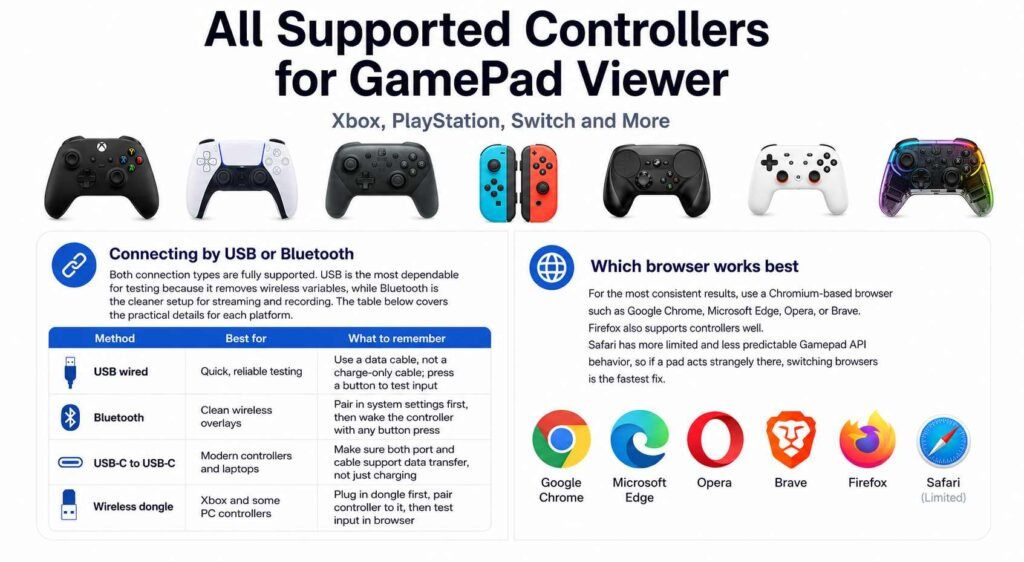
Both connection types are fully supported. USB is the most dependable for testing because it removes wireless variables, while Bluetooth is the cleaner setup for streaming and recording. The table below covers the practical details for each platform.
| Method | Best for | What to remember |
|---|---|---|
| USB wired | Quick, reliable testing | Use a data cable, not a charge-only cable; press a button to test input |
| Bluetooth | Clean wireless overlays | Pair in system settings first, then wake the controller with any button press |
| USB-C to USB-C | Modern controllers and laptops | Make sure both port and cable support data transfer, not just charging |
| Wireless dongle | Xbox and some PC controllers | Plug in dongle first, pair controller to it, then test input in browser |
Which browser works best
For the most consistent results, use a Chromium-based browser such as Google Chrome, Microsoft Edge, Opera, or Brave. Firefox also supports controllers well. Safari has more limited and less predictable Gamepad API behavior, so if a pad acts strangely there, switching browsers is the fastest fix.
Troubleshooting a controller that will not show up
If your pad is not appearing, work through these in order. The most common cause by far is simply that the controller has not been woken with a button press yet, since the browser deliberately waits for input before revealing a device.
| Problem | Likely cause | Fix |
|---|---|---|
| Pad not detected | No input registered yet | Press any button or move a stick to wake the controller |
| Connected but silent | Charge-only cable | Swap to a known data cable or try another USB port |
| Inputs hijacked | Steam or another app captured it | Close Steam Input and other controller apps, then refresh |
| Wrong buttons light up | Layout or DInput mapping issue | Switch the controller to XInput mode if available |
| Dropout over Bluetooth | Pairing or low battery | Re-pair controller, charge it, and remove old pairings |
| Nothing works at all | Browser limitation | Try Chrome or Edge and update to the latest version |
Frequently asked questions
Do I need to install anything to use my controller?
No. GamePad Viewer runs entirely in the browser. As long as your system recognizes the controller, you only need to open the page and press a button.
Why do my button labels look swapped?
The viewer reads button positions through a standard layout. Nintendo and some third-party pads print their letters in different spots, so the position is correct even when the printed label differs. The actual input is always accurate.
Can I test a controller without launching a game?
Yes, and that is one of the best uses of the tool. You can confirm every button, trigger, and stick responds, spot drift or stick deadzone issues, and check for a sticky trigger, all without opening a single game.
Does it work on a phone or tablet?
Controller support on mobile browsers is more limited and varies by device. For full, reliable detection across every controller family, a desktop browser is recommended.
Whether you are setting up an input overlay for a stream, diagnosing a failing pad before you decide to repair or replace it, or simply confirming a new purchase works, GamePad Viewer keeps the process fast and brand-agnostic. Plug in or pair, press a button, and watch your controller come to life on screen.