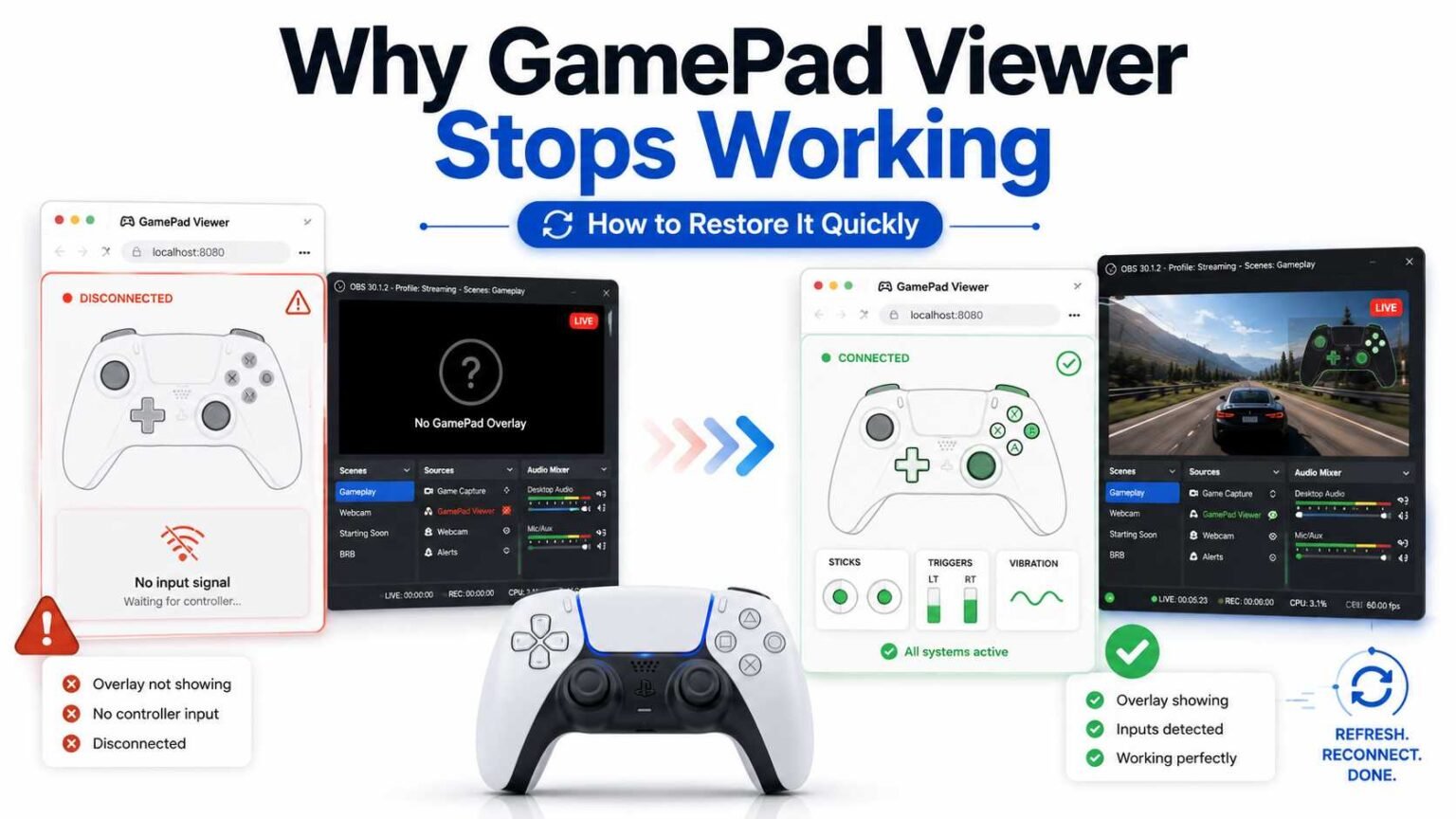

You’re seconds from going live. The combo guide is queued up, OBS is humming along, and then you glance at your controller overlay, nothing. No button presses, no stick movement, just a frozen or blank gamepad sitting there like it’s never seen a controller in its life.
If you use GamePad Viewer to show controller input on a stream, a tutorial, or a recorded run, this is one of those small problems that feels disproportionately stressful. The good news: it’s almost never your Controller, and it’s almost never permanent. Three fixes solve the vast majority of cases: reconnecting the Controller, resetting the overlay, and clearing your browser cache. Below, you’ll find exactly how to do each one, plus the less obvious causes worth checking if those don’t do it.
What GamePad Viewer Actually Does (And Why It Breaks So Easily)
GamePad Viewer is a browser-based tool that reads your Controller’s input through the Gamepad API, a built-in browser feature, not a separate program you install. That’s exactly what makes it convenient for streamers: no drivers, no background app, just a browser tab or an OBS browser source showing every button press, stick tilt, and trigger pull in real time.
It’s also exactly what makes it fragile. Because the tool depends entirely on the browser’s relationship with your Controller, anything that disrupts that relationship, a dropped Bluetooth signal, a stale cached page, or another program quietly claiming the Controller for itself, breaks the overlay without breaking anything else on your system. Your Controller still works fine in-game. The viewer loses the thread.
Real Reasons GamePad Viewer Stops Detecting Your Controller
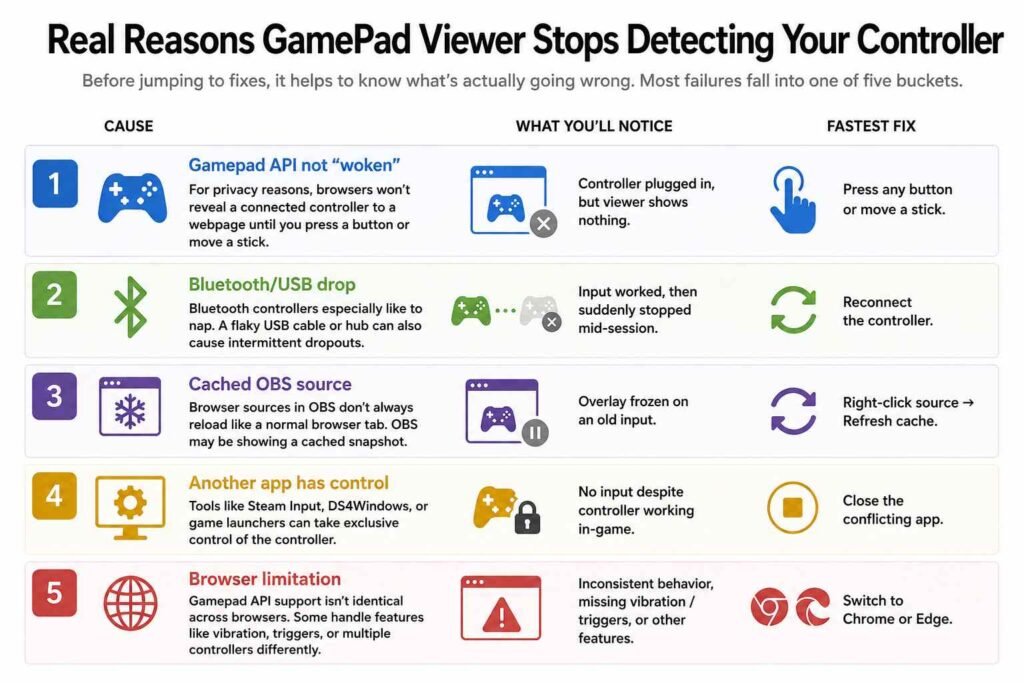
Before jumping to fixes, it helps to know what’s actually going wrong. Most failures fall into one of five buckets.
Your Browser Never “Woke Up” the Gamepad API
This catches more people than anything else. For privacy reasons, browsers won’t reveal a connected controller to a webpage until you actually press a button or move a stick on it. If you plugged in your Controller after the page already loaded, or your Controller was idle, GamePad Viewer may show “no gamepad detected” even though Windows or macOS sees it perfectly well.
A Loose, Sleepy, or Dropped Connection
Bluetooth controllers especially like to nap. If a PS5 DualSense or Switch Pro Controller sits idle for a stretch, it can quietly disconnect or enter a low-power state. Wired controllers aren’t immune; either a flaky USB cable or a hub with too many devices pulling power can cause intermittent dropouts that look identical to a software bug.
OBS Is Showing You a Cached, Frozen Source
Browser sources in OBS don’t always reload the way a normal browser tab does. If GamePad Viewer worked yesterday and today it’s frozen on the last input you made, OBS is likely just displaying a cached snapshot rather than talking to your Controller in real time.
Another Program Is Hogging the Controller
Tools like Steam Input, DS4Windows, or certain game launchers can grab “exclusive” access to a controller so they can remap it. While that program holds the Controller, your browser may not get a clean signal. GamePad Viewer sees nothing, even though the Controller itself is fine.
Your Browser Itself Is the Limiting Factor
Gamepad API support isn’t identical across browsers. Some browsers handle vibration, trigger pressure, or multiple connected controllers differently, and a handful of older or less common browsers barely support it at all. If the overlay only misbehaves in one specific browser, that browser is probably the variable.
| Cause | What You’ll Notice | Fastest Fix |
|---|---|---|
| Gamepad API not “woken” | Controller plugged in, but viewer shows nothing | Press any button or move a stick |
| Bluetooth/USB drop | Input worked, then suddenly stopped mid-session | Reconnect the controller |
| Cached OBS source | Overlay frozen on an old input | Right-click source → Refresh cache |
| Another app has control | No input despite controller working in-game | Close the conflicting app |
| Browser limitation | Inconsistent behavior, missing vibration/triggers | Switch to Chrome or Edge |
Three Quick Fixes That Solve Most Problems
Run through these in order. Together, they cover the overwhelming majority of GamePad Viewer issues, and none of them require touching a settings menu you’ve never seen before.
Fix 1: Reconnect the Controller the Right Way
Don’t just unplug and replug; give the browser a clean signal to latch onto.
- Disconnect the Controller fully (unplug the cable, or turn off Bluetooth pairing).
- Wait five seconds. This matters more than it sounds like it should; it lets the OS fully release the device.
- Reconnect it, then immediately press a button or wiggle a stick. This is the step people skip, and it’s usually the one that actually fixes things.
- Confirm the Controller shows up correctly in your OS’s device settings before assuming the viewer is still broken.
Fix 2: Reset the Overlay (Not Just Refresh)
A normal page refresh sometimes isn’t enough, especially if you’re running the viewer inside OBS.
- In a regular browser tab, do a hard refresh rather than a soft one on most browsers, that’s holding Shift while clicking reload, or using Ctrl+Shift+R (Cmd+Shift+R on Mac).
- In OBS, right-click the GamePad Viewer browser source and choose the refresh/reload cache option, specifically the regular refresh in OBS often isn’t enough to force a clean reconnect.
- If you’ve customized your overlay with URL parameters (skin, color, scale), keep that full URL saved somewhere so resetting doesn’t mean rebuilding your setup from scratch.
Fix 3: Clear Your Browser Cache
If the first two fixes didn’t help, a stuck cache is the next most likely culprit, particularly if the overlay looks visually outdated or ignores changes you’ve made.
- Clear cached images and files for your browser (not your full history, you don’t need to nuke saved passwords to fix a gamepad overlay).
- Close and fully reopen the browser afterward rather than just the tab.
- Reload GamePad Viewer fresh and reconnect your Controller using the wake-up step from Fix 1.
Step-by-Step: Restoring GamePad Viewer Inside OBS
Since most people run into this mid-stream, here’s the sequence specifically for an OBS setup, rather than a plain browser tab.
| Step | Action | Why It Works |
|---|---|---|
| 1 | Press a button on the controller before checking OBS | Wakes the Gamepad API so the browser can detect the controller input |
| 2 | Right-click the browser source → “Refresh cache of current page” | Forces OBS to reload the overlay instead of displaying a stale snapshot |
| 3 | Check Windows/macOS device settings for the controller | Confirms the operating system detects the controller before troubleshooting the overlay |
| 4 | Close apps like Steam Input or DS4Windows temporarily | Frees controller access so the browser can properly read inputs |
| 5 | Re-enter your custom URL parameters if the skin reset | Restores your selected layout, colors, and scaling settings |
| 6 | Restart OBS if input still doesn’t register | Clears browser-engine issues and refreshes the OBS overlay environment |
Which Browser Actually Plays Nicest With GamePad Viewer
If you keep running into trouble in one browser but not another, this is worth a quick look. Gamepad API support is genuinely uneven across browsers, and the difference shows up in small but noticeable ways.
| Browser | Gamepad Detection | Vibration/Rumble Support | Best For |
|---|---|---|---|
| Chrome | Excellent | Yes | Most reliable overall, best OBS pairing |
| Edge | Excellent | Yes | Same engine as Chrome, equally solid |
| Firefox | Good | Limited | Fine for basic display, weaker on advanced features |
| Safari | Inconsistent | No | Not recommended for streaming use |
If you’re troubleshooting and have the option, testing GamePad Viewer in Chrome or Edge first will quickly tell you whether the problem is the tool or the browser.
How to Stop This From Happening Again
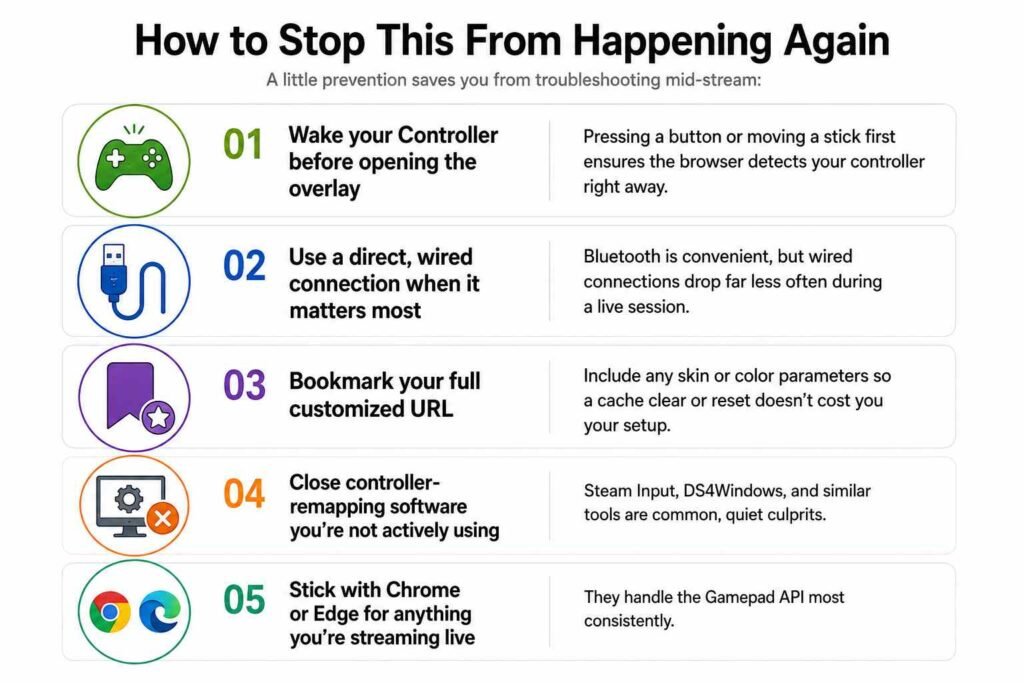
A little prevention saves you from troubleshooting mid-stream:
- Wake your Controller before opening the overlay, not after pressing a button first, then loading the page.
- Use a direct, wired connection when it matters most. Bluetooth is convenient, but wired connections drop far less often during a live session.
- Bookmark your full customized URL, including any skin or color parameters, so a cache clear or reset doesn’t cost you your setup.
- Close controller-remapping software you’re not actively using, Steam Input, and similar tools are common, quiet culprits.
- Stick with Chrome or Edge for anything you’re streaming live, since they handle the Gamepad API most consistently.
Quick Answers to Common Questions
Why does my controller work in-game but not in GamePad Viewer?
- The game is likely talking to the Controller directly, while your browser hasn’t been “woken up” by an input yet, or another program has grabbed exclusive access ahead of the browser.
Do I lose my custom skin or color settings when I clear the cache?
- You can, if those settings live in cached page data rather than your URL. Save your full configured link beforehand so you can paste it right back in.
Is it normal for the overlay to lag slightly behind real input?
- A small amount of latency is normal and browser-dependent. If the lag is severe or input is missing entirely, that’s a connection or detection issue, not normal behavior.
Final Thoughts
GamePad Viewer breaking mid-session feels alarming in the moment, but it’s almost always one of a handful of well-understood causes, and every one of them is fixable in under a minute once you know where to look. Reconnect with intent, reset the overlay properly instead of just refreshing, and clear your cache when things look stale. Keep those three habits in your back pocket, and a frozen controller overlay stops being a stream emergency and becomes a ten-second fix you barely think about.