A GamePad Viewer overlay can make your stream look more professional, but only when it is placed correctly. Many streamers add a controller overlay to OBS, then leave it too large, too bright, too close to the gameplay, or hidden behind alerts. The result is not helpful for viewers. It becomes visual noise.
The best OBS layouts for GamePad Viewer overlays are simple, readable, and matched to the type of content you create. A speedrun layout needs clear inputs. A fighting game stream may need the overlay close to the action. A casual gaming stream may only need a small controller view that supports the gameplay without taking attention away from it.
Why GamePad Viewer Overlays Matter in OBS
A GamePad Viewer overlay shows your controller inputs in real time. Viewers can see button presses, stick movement, trigger pressure, and sometimes d-pad activity depending on the skin you use.
This matters because controller inputs help viewers understand your gameplay better. When you hit a clean combo, make a fast turn, perform a perfect jump, or miss a timing window, the overlay makes the moment easier to follow.
For teaching content, controller overlays are even more useful. Viewers can copy your inputs instead of guessing what you pressed. For competitive games, the overlay also adds trust because people can see your actions happening live.
A good overlay should do three things:
- It should be visible without blocking gameplay.
- It should match your stream design.
- It should be easy to read on desktop and mobile screens.
Best OBS Layouts for GamePad Viewer Overlays
There is no single perfect layout for every streamer. The best setup depends on the game, camera position, chat box, alerts, and where the important gameplay information appears on screen.
| OBS Layout Style | Best For | Recommended Overlay Position | Main Benefit |
|---|---|---|---|
| Bottom corner layout | General gaming, casual streams, walkthroughs | Bottom left or bottom right | Clean and simple without covering gameplay |
| Near facecam layout | Personality streams, commentary, reaction style content | Under or beside the webcam | Keeps streamer and controller activity together |
| Speedrun layout | Speedrunning, challenge runs, timing-based games | Side panel or lower section | Makes input proof and timing easier to see |
| Fighting game layout | Combos, training, ranked matches | Close to health bars but not covering them | Helps viewers study inputs and execution |
| Racing game layout | Sim racing, arcade racing, drifting | Lower center or bottom side | Shows steering and trigger pressure clearly |
| Tutorial layout | Guides, controller lessons, beginner help | Larger overlay near instructions | Makes learning easier for viewers |
For most streamers, the bottom corner layout is the safest choice. It works with almost every game and keeps the overlay away from the center of the screen.
How to Position GamePad Viewer Overlays in OBS
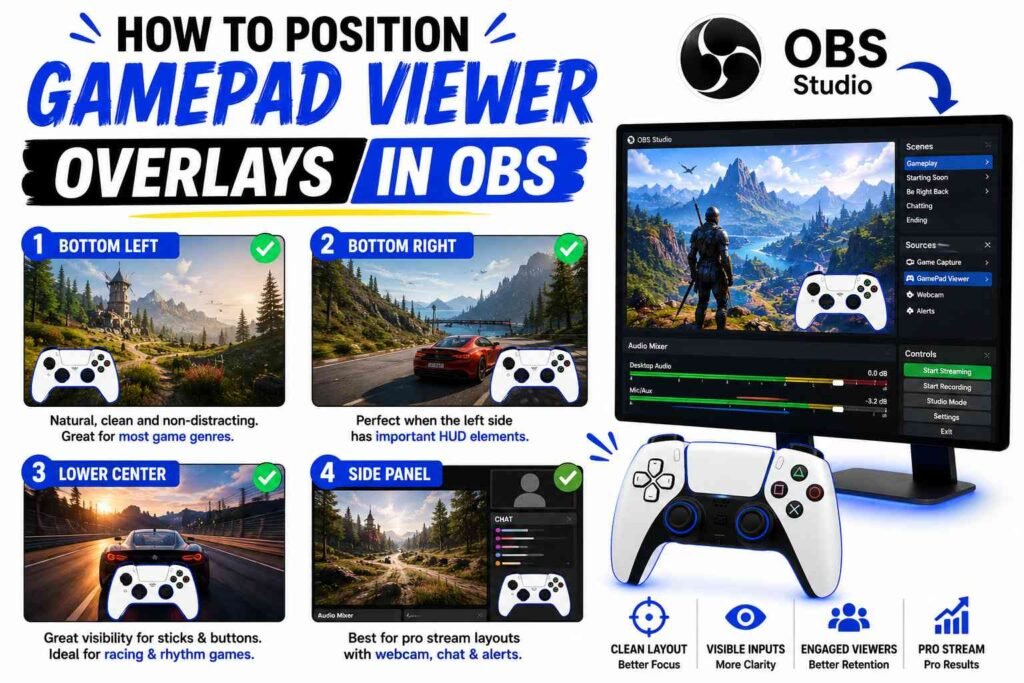
Positioning is more important than many streamers think. A controller overlay can look great in one game and terrible in another because every game uses screen space differently.
Bottom Left Position
The bottom left is a common choice because it feels natural and does not distract from the main gameplay area. It works well for platformers, adventure games, sports games, shooters, and general gaming streams.
Before using this position, check the game HUD. Some games place health, ammo, mini maps, subtitles, or item prompts in the bottom left. If your overlay covers these details, move it slightly upward or switch to the opposite corner.
Bottom Right Position
The bottom right is another strong option, especially when the left side already has a mini map, party list, quest tracker, or chat box. This layout is clean for open-world games, racing games, RPGs, and casual streams.
The key is to leave enough padding from the edge. Do not place the controller directly against the screen border. A little space makes the overlay feel intentional instead of pasted on.
Lower Center Position
The lower center position can work well for racing games, rhythm games, and controller testing content. It gives the overlay more attention and makes analog stick movement easier to see.
Use this only when the lower center area is not important to gameplay. In many games, subtitles, stamina bars, menus, and item prompts appear there. If the overlay competes with those elements, viewers will notice.
Side Panel Position
A side panel layout is best when your OBS scene has extra space around the gameplay. Many pro stream layouts use a 16:9 gameplay window with a side panel for webcam, chat, stream labels, alerts, and controller input.
This setup is very useful for speedruns, challenge runs, and tutorial videos because it keeps the gameplay clean while still showing all supporting information.
Correct Scaling for a Clean OBS Controller Overlay
A GamePad Viewer overlay should be large enough to read, but not so large that it becomes the main focus. The right scale depends on stream resolution.
If you stream at 1080p, the overlay can usually sit between small and medium size. If you stream at 720p, avoid making it too tiny because mobile viewers may not see the buttons clearly.
| Stream Resolution | Suggested Overlay Size | Best Use Case | Common Mistake |
|---|---|---|---|
| 1920 x 1080 | 220 to 360 px wide | Most professional streams | Making it too large and covering the HUD |
| 1280 x 720 | 180 to 280 px wide | Smaller streams and low bitrate setups | Making buttons unreadable on mobile |
| 2560 x 1440 | 300 to 450 px wide | High quality recordings and large layouts | Forgetting how it looks after downscaling |
| Vertical stream format | 180 to 300 px wide | Shorts, TikTok, Reels, mobile content | Placing it too close to captions |
| Tutorial scene | 350 to 600 px wide | Teaching inputs and controller setup | Leaving it large during normal gameplay |
A good rule is simple: viewers should understand the input without staring at it. If the overlay pulls attention away from the game, reduce the size.
Transparency Tips for GamePad Viewer Overlays
Transparency can make your overlay look much better, but it needs balance. If the overlay is fully solid, it can feel heavy. If it is too transparent, viewers cannot read it.
Use Transparent Backgrounds
Most controller overlay skins work best with a transparent background. This lets the controller sit naturally over your gameplay or stream frame.
In OBS, add GamePad Viewer as a Browser Source. Then use the overlay URL and make sure the background is transparent if your skin supports it. A transparent controller feels cleaner than a large box around the controller.
Keep Button States Clear
When a button is pressed, the change should be obvious. Some skins use color changes, brightness changes, or filled button states. Test this before going live.
Open OBS, press buttons quickly, and watch the preview. If you cannot see the difference between pressed and unpressed buttons, your viewers will struggle too.
Do Not Overuse Opacity Filters
Lowering source opacity in OBS can help, but too much opacity makes the controller hard to read. Instead of making the whole overlay faint, choose a skin that already has clean contrast.
For most streams, the overlay should look slightly softer than alerts but clearer than background decoration.
Branding Tips for a Professional Stream Setup
Branding does not mean adding your logo everywhere. Good stream branding means your overlay feels like part of the full layout.
Your GamePad Viewer overlay should match your webcam frame, panels, alerts, and scene style. If your stream uses a clean orange theme, the controller overlay should not use random neon colors unless that is part of your brand.
| Branding Element | What To Do | What To Avoid |
|---|---|---|
| Controller skin | Use a style that matches your stream theme | Using a skin that clashes with your layout |
| Colors | Keep button highlights readable and consistent | Choosing colors only because they look bright |
| Logo placement | Place logo near the frame, not on top of inputs | Covering buttons or sticks with branding |
| Webcam relation | Align the overlay with webcam edges when possible | Floating it randomly without structure |
| Scene consistency | Use the same overlay position across scenes | Moving it every time you switch scenes |
| Alerts | Keep alerts away from the controller input area | Letting alerts cover inputs during key moments |
A clean stream layout looks planned. Even small alignment details help. Try matching the controller overlay width with your webcam width or placing it directly under the webcam frame. This makes the setup feel more professional.
Best Layouts by Game Type
Different games need different overlay placement. A shooter does not use screen space the same way as a fighting game. A racing game does not need the same layout as an RPG.
FPS and Battle Royale Games
For games like Call of Duty, Fortnite, Apex Legends, Halo, or similar shooters, keep the GamePad Viewer overlay away from the center and top corners. These games often need clear visibility for enemies, mini maps, ammo, and team status.
Best placement is usually bottom right or below the webcam. Keep it small enough that it does not block movement or visual awareness.
Fighting Games
For fighting games, the overlay can be more important because viewers often want to see combos, directional inputs, and button timing. Place it near the bottom area, but do not cover super meters, health bars, round timers, or combo counters.
A slightly larger overlay works well for fighting game tutorials because the inputs are part of the teaching.
Racing Games
Racing games benefit from visible stick and trigger movement. Viewers can see braking, acceleration, steering, and throttle control.
A lower center layout can work well if it does not cover speed, gear, or lap information. For sim racing scenes, a side panel layout is often cleaner.
RPGs and Open-World Games
For RPGs and open-world games, the overlay should stay subtle. Viewers are usually watching story, exploration, combat, or quests. The controller overlay adds context, but it should not dominate the screen.
Bottom left or bottom right is usually enough.
Speedruns and Challenge Runs
Speedrun viewers often care about input timing, mistakes, resets, and clean execution. For this type of stream, the GamePad Viewer overlay should be clear and consistent.
A side panel layout is one of the best choices because it keeps gameplay clean while showing inputs, timer, webcam, and splits together.
OBS Setup Tips for GamePad Viewer Browser Source
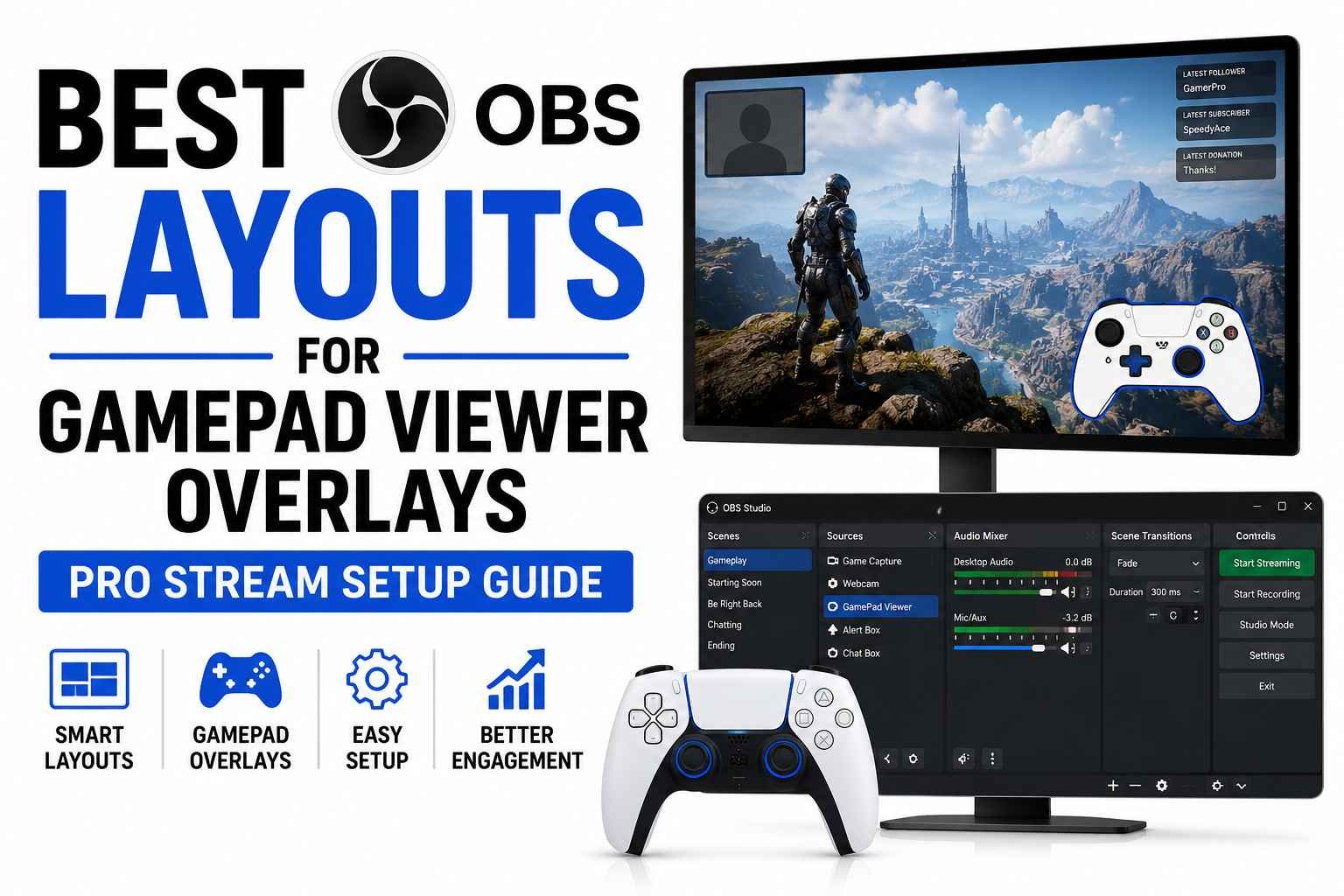
To add a GamePad Viewer overlay in OBS, use a Browser Source. Paste your GamePad Viewer URL, then set the width and height based on your overlay design.
A common setup is:
- Set the browser source size larger than the actual controller.
- Resize inside OBS using the transform handles.
- Lock the source after positioning it.
- Place it above gameplay but below alerts if you want alerts to remain visible.
- Test it in a private recording before going live.
Do not only check the OBS preview. Record a short clip, watch it back, and view it on your phone too. Many viewers watch streams on mobile, so an overlay that looks perfect on your monitor may be too small on a phone screen.
Common GamePad Viewer Overlay Mistakes
One common mistake is placing the overlay over important HUD information. This happens a lot with mini maps, subtitles, inventory prompts, and health bars.
Another mistake is using a controller skin that looks cool but is hard to read. A stylish overlay is not useful if button presses are unclear.
Some streamers also make the overlay too large because they want viewers to notice it. This can work for tutorials, but for normal gameplay, the overlay should support the stream rather than compete with it.
A fourth mistake is not checking scene transitions. Your overlay may look good on your main gameplay scene but overlap badly with your starting soon, be right back, or chatting scene.
Pro Stream Setup Guide for Cleaner Scenes
A professional OBS layout should have visual order. Your gameplay should be the main focus. Your webcam, chat, alerts, and GamePad Viewer overlay should support that focus.
Use alignment guides in OBS. Keep similar spacing between your webcam, controller overlay, and stream labels. Lock sources once they are placed correctly so you do not move them by accident.
Create separate scenes for different needs. For example, you can have one scene for normal gameplay, one larger controller scene for tutorials, and one side panel layout for speedruns.
This gives you flexibility without making every stream look crowded.
Best GamePad Viewer Overlay Layout for Beginners
If you are new to OBS, start with a simple bottom corner layout. Use a transparent controller skin, medium size, and enough edge padding. Put the overlay above the gameplay source and below major alert sources.
After that, record a one-minute test. Press every button, move both sticks, use triggers, and switch scenes. Then watch the video as a viewer would. Ask yourself if the overlay is clear, distracting, or blocking anything important.
This simple test will improve your layout faster than guessing.
Final Thoughts
The best OBS layouts for GamePad Viewer overlays are not about filling the screen with more graphics. They are about making controller inputs easy to understand while keeping gameplay clean.
For general streams, use a bottom corner layout. For speedruns, use a side panel. For tutorials, make the overlay larger. For fighting games and racing games, place the overlay where viewers can study inputs without losing sight of the action.
A good GamePad Viewer overlay should feel natural, readable, and consistent with your brand. When positioning, scaling, transparency, and branding all work together, your OBS setup looks more professional and gives viewers a better way to understand your gameplay.