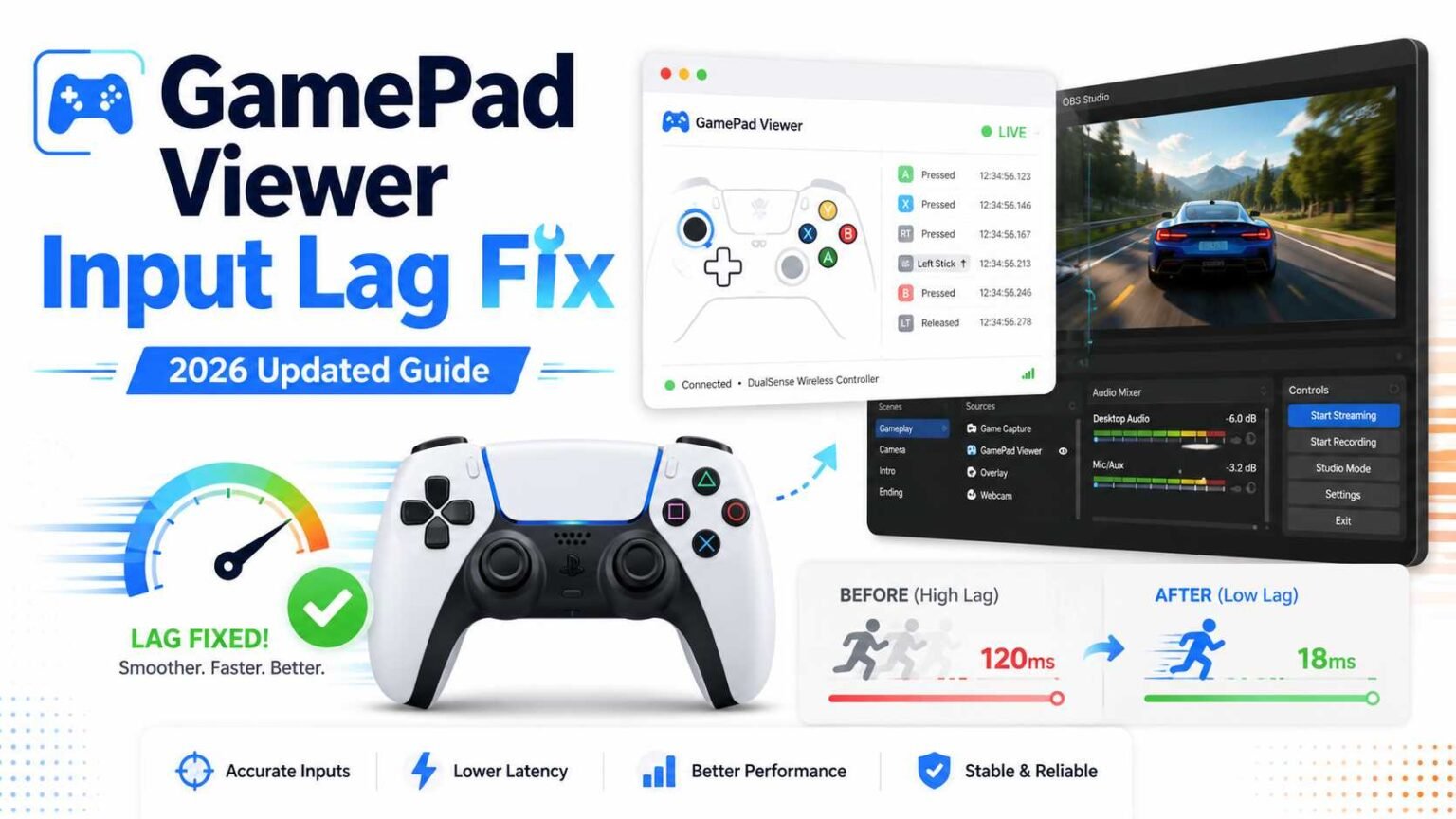
GamePad Viewer input lag can make a clean stream look messy. Your gameplay may be smooth, but the controller overlay reacts late, freezes for a moment, or shows button presses after the action already happened. For viewers, that small delay can make combos, speedruns, fighting game inputs, racing lines, and clutch reactions feel less clear.
The good news is that most GamePad Viewer input lag problems do not come from the overlay itself. They usually come from the controller connection, browser permissions, Bluetooth delay, OBS Browser Source settings, browser load, or a streaming PC that is already working too hard.
GamePad Viewer and similar controller overlays depend on the browser’s Gamepad API to read button presses and stick movement. The browser can detect connected controllers and read their button and axis states, but support can vary by browser, controller, and platform. (OBS Browser Source also has settings that affect how web overlays load, refresh, and run inside a scene.
What GamePad Viewer Input Lag Really Means
Before fixing anything, you need to know what kind of delay you are seeing. There are two different problems that people often call input lag.
Real controller input lag means your game receives inputs late. That affects gameplay. Overlay input lag means the game reacts normally, but the GamePad Viewer display updates late. That affects what viewers see.
For streamers, overlay input lag is more common. You press jump, your character jumps instantly, but the overlay button lights up half a second later. That means the issue is likely between the controller, browser, OBS, and stream setup, not the game itself.
| Symptom | Likely Cause | First Fix to Try |
|---|---|---|
| Overlay reacts late, but game feels fine | OBS or browser source delay | Test GamePad Viewer in a normal browser first |
| Game and overlay both feel delayed | Controller, Bluetooth, or system latency | Switch to USB and test again |
| Overlay freezes after scene change | OBS Browser Source refresh issue | Refresh the browser source or adjust scene settings |
| Controller is not detected until pressing a button | Browser Gamepad API behavior | Click the page and press any controller button |
| Buttons flicker or stick movement shakes | Drift, deadzone, or weak connection | Recalibrate controller and increase deadzone |
Start With The Controller Before Blaming OBS
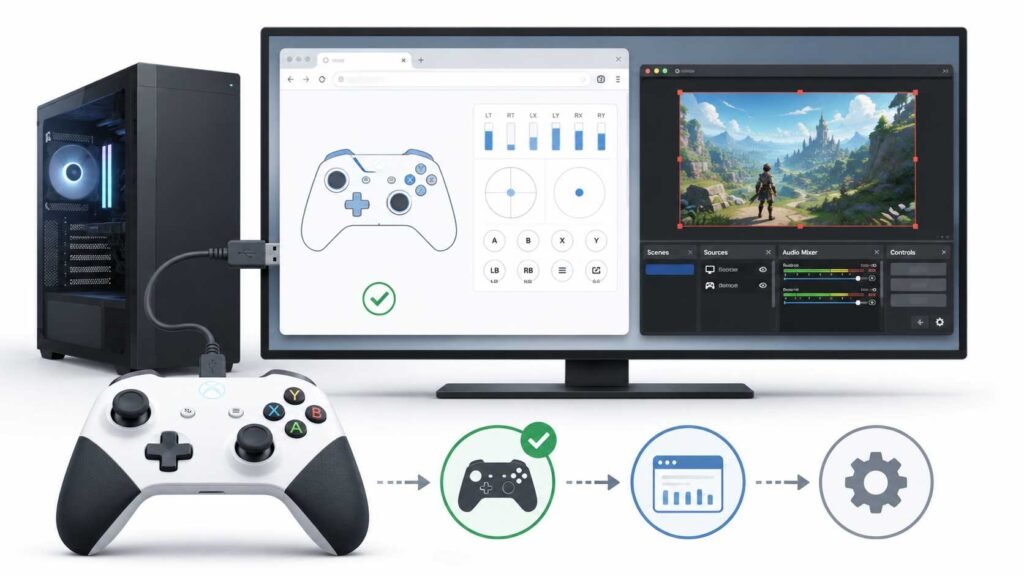
The fastest way to fix GamePad Viewer input lag is to test from the controller upward. Many streamers start changing OBS settings first, but that can waste time if the controller connection is the real issue.
Use USB For Testing First
Bluetooth is cleaner for desk setups, but USB is better for finding the problem. A wired connection removes wireless interference, battery issues, pairing problems, and controller sleep behavior.
Use a proper data cable, not a charge-only cable. Some USB cables can power the controller, but cannot send input data correctly. If the controller lights up but the GamePad Viewer does not respond, the cable may be the issue.
Connect the controller by USB, open GamePad Viewer in a normal browser, click the page, and press a few buttons. If the overlay becomes instant in the browser, your controller is fine, and the problem is probably inside OBS.
Check Battery And Wireless Distance
A low battery can cause delayed or unstable Bluetooth input. So can distance, USB 3.0 interference, crowded wireless devices, or a controller connected through a weak Bluetooth adapter.
For a wireless setup, keep the controller close to the PC, remove extra paired devices you do not use, and avoid placing the Bluetooth dongle behind the computer case. A short USB extension cable can help move the dongle closer to your desk.
Test GamePad Viewer Outside OBS
This is the most important step in the whole GamePad Viewer input lag fix process.
Open GamePad Viewer in Chrome, Edge, Brave, Opera, or Firefox. Press buttons and move both sticks. Watch carefully. Do the buttons light up late? Does the stick movement feel smooth? Does the controller disconnect?
The browser must receive controller input through the Gamepad API. MDN notes that a page may receive the gamepad connection event when the page is focused, and the user presses a button or moves an axis. So if nothing appears at first, click inside the page and press any controller button.
| Test Result | Meaning | What To Do Next |
|---|---|---|
| Works smoothly in browser, delayed in OBS | OBS Browser Source issue | Fix OBS source settings |
| Delayed in browser and OBS | Controller or browser issue | Change cable, port, browser, or connection type |
| Works in one browser but not another | Browser support issue | Use the browser that detects the controller best |
| Works after pressing a button | Normal browser detection behavior | Press a button after loading the page |
| Drops after a few minutes | Sleep, battery, or Bluetooth issue | Use USB or disable controller sleep where possible |
Best Browser Settings For GamePad Viewer In 2026
For most users, Chromium-based browsers are the safest choice for GamePad Viewer. Chrome, Edge, Brave, and Opera are usually reliable because they handle browser-based tools well. Firefox also supports gamepads, but some behavior may differ depending on platform and controller.
Safari is less ideal for many controller overlay setups, especially if you are streaming from a Mac and using multiple browser tools. If GamePad Viewer behaves strangely in Safari, test the same controller in Chrome or Edge before changing anything else.
Keep The Browser Clean
Extensions can slow pages down, block scripts, or change how a page behaves. For streaming tools, use a clean browser profile with only the extensions you truly need. Avoid running heavy browser tabs, video sites, dashboards, and stream tools in the same browser window during a live session.
A simple rule works well: one browser profile for streaming, one for normal browsing.
Fix GamePad Viewer Lag In OBS Studio
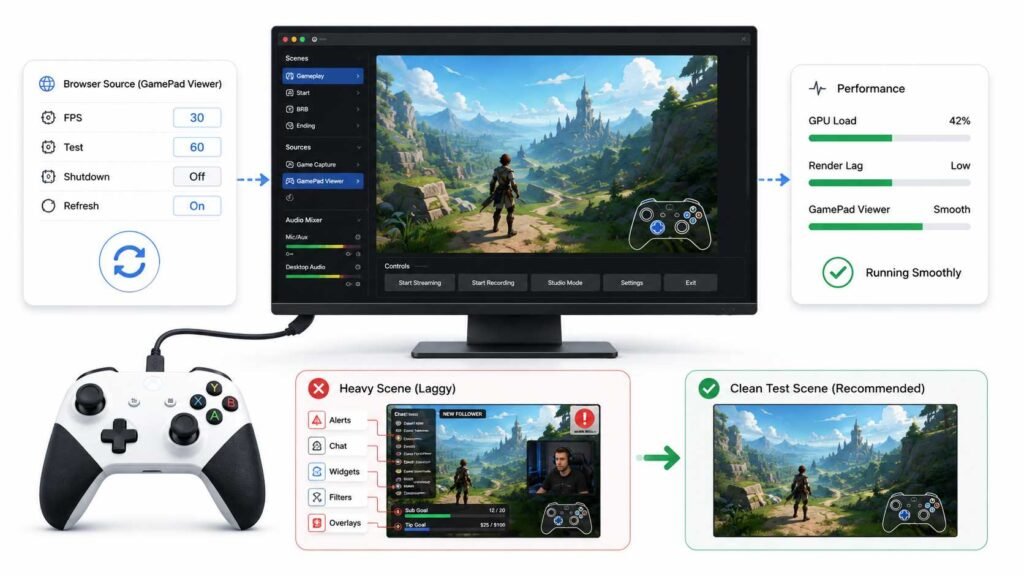
If GamePad Viewer works smoothly in a normal browser but lags in OBS, the issue is almost certainly your OBS setup.
OBS Browser Source is based on Chrome Embedded Framework, and its properties include options such as FPS, custom CSS, shutdown source when not visible, refresh browser source when the scene becomes active, and refresh cache of the current page. These settings can affect whether your overlay stays active, reloads, or updates smoothly.
Set Browser Source FPS Correctly
For a controller overlay, 30 FPS is usually enough. If your overlay looks choppy, test 60 FPS, but do not use 60 just because it sounds better. A higher FPS browser source uses more resources. If your PC is already under load, 60 FPS can make the overlay worse instead of better.
For most streamers:
| OBS Browser Source Setting | Recommended Setup | Why It Helps |
|---|---|---|
| Width and height | Match your overlay layout size | Avoids scaling problems |
| FPS | Start with 30, test 60 only if needed | Balances smoothness and load |
| Shutdown source when not visible | Off for controller overlays | Keeps input tracking active |
| Refresh browser when scene becomes active | On only if overlay freezes | Reloads source when switching scenes |
| Refresh cache of current page | Use when overlay acts stuck | Forces a clean reload |
Do Not Overload Your Scene
Input overlays are light, but OBS scenes can become heavy when you add alerts, animated backgrounds, browser docks, chat boxes, camera filters, capture cards, and high-bitrate recording.
If the GamePad Viewer overlay lags only while streaming or recording, check OBS stats. Rendering lag, skipped frames, and high GPU load can make browser sources update late.
Try this clean test:
Create a new blank OBS scene. Add only your gameplay capture and GamePad Viewer Browser Source. Record for 30 seconds. If the overlay is smooth there, your main scene is too heavy.
Then remove or reduce the heaviest items from your main scene. Animated backgrounds, large browser widgets, unnecessary filters, and too many nested scenes are common causes.
Fix Bluetooth Input Lag
Bluetooth is useful, but it is not always stable for streaming. If your GamePad Viewer input delay appears randomly, Bluetooth should be one of the first things you check.
Move the Bluetooth adapter closer to the controller. Fully charge the controller. Remove old controller pairings. Restart the PC after pairing again. If you use an Xbox controller on PC, test both Bluetooth and the official wireless adapter if you have one, because the adapter can be more stable for some setups.
For PlayStation controllers, make sure the controller is not also connected to another device nearby. For Switch Pro controllers, test wired mode if Bluetooth feels inconsistent.
Fix Stick Drift And Button Flicker
Sometimes the issue is not lag. It is an unstable input.
If your stick moves on the overlay while you are not touching it, that is usually stick drift or a deadzone problem. If buttons flash quickly, it can be a weak cable, wireless interference, or a controller that needs firmware attention.
Open your controller tester first. Check both sticks, triggers, bumpers, D-pad, and face buttons. If the overlay shows movement while the controller is still, increase the deadzone inside the overlay settings if available, or recalibrate the controller in your system settings.
Use The Right OBS Layout For Smooth Input Display
Where you place GamePad Viewer matters, too. If the overlay is too large, heavily filtered, cropped badly, or stretched across the canvas, OBS has more work to do.
Keep the controller overlay at a clean size. Do not add unnecessary filters. Avoid browser source scaling that makes the image blurry. Lock the source after positioning it so you do not move it by mistake.
A good layout keeps the controller visible but not distracting. Bottom left or bottom right works well for most gameplay. Fighting games, racing games, and speedruns may need a larger overlay because inputs are part of the viewing experience.
Advanced Fixes For Streamers
If the basic fixes do not solve GamePad Viewer input lag, look deeper into your system.
Update controller firmware where supported. Try another USB port, preferably directly on the motherboard instead of a front case port or hub. Close software that remaps inputs unless you need it. Some remapping tools can create duplicate controller entries, which may confuse browser-based overlays.
Also, check whether the game, Steam Input, Windows, and the browser are all reading the same controller. If two tools are translating the same controller at once, the overlay may detect a different input layer than the game.
Final Checklist For GamePad Viewer Input Lag Fix
Use this order when fixing the problem:
Check GamePad Viewer in a normal browser first. Test with USB before Bluetooth. Click the page and press a button after loading. Change the browser if detection is poor. Rebuild the OBS Browser Source if it keeps freezing. Keep Browser Source FPS at 30 unless 60 is clearly smoother. Turn off heavy OBS filters and extra browser sources. Watch OBS stats during recording or streaming. Recalibrate sticks if the overlay moves by itself.
Conclusion
The best GamePad Viewer input lag fix is not one magic setting. It is a clean testing process. Start with the controller, then the browser, then OBS. If the overlay is smooth in a normal browser, focus on OBS Browser Source settings and scene load. If the overlay lags everywhere, focus on USB, Bluetooth, browser support, cable quality, and controller health.
For 2026 stream setups, the most reliable setup is simple: a wired controller for testing, a clean Chromium-based browser, a lightweight OBS scene, stable Browser Source settings, and no unnecessary filters. Once the overlay reacts at the same time as your gameplay, viewers can clearly see your inputs, your skill, and the exact timing behind every move.