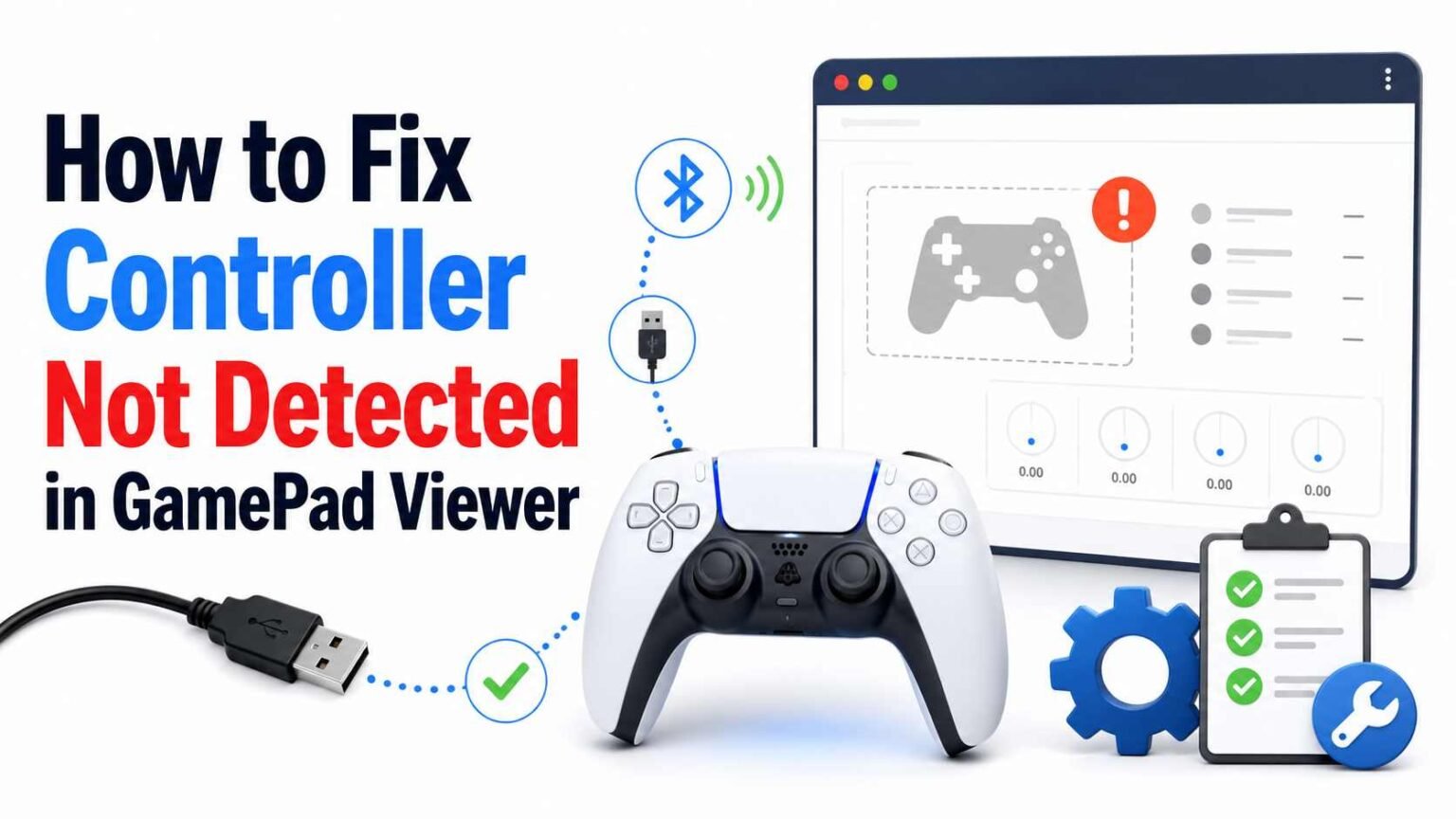
If GamePad Viewer is not detecting your controller, the problem is usually not the controller itself. In most cases, the issue comes from one of three places: the browser does not have permission to access the device, the controller is not being recognized properly by Windows, or the wrong setup method is being used inside the overlay page.
The good news is that most detection problems are fixable in a few minutes once you know where to look.
What Causes GamePad Viewer Not to Detect a Controller?
GamePad Viewer works through your web browser. That means it depends on a chain of things working together:
- The controller must be powered on and connected correctly
- Windows must recognize it as an input device
- Your browser must allow access to gamepad input
- GamePad Viewer must be open in a compatible tab or browser source
- OBS must be loading the correct overlay URL if you are using it in a stream layout
If any one of those breaks, the overlay may stay blank, fail to react to button presses, or show a “no controller detected” message.
The most common reasons include:
- Faulty or charge-only USB cable
- Bluetooth pairing issues
- Browser permissions or browser compatibility problems
- Outdated or corrupted controller drivers
- Steam Input or other controller tools are interfering with detection
- Controller connected after GamePad Viewer loaded, but the page did not refresh
- Wrong browser source URL in OBS
- Too many input devices are connected at once, causing the browser to pick the wrong one
Before jumping into advanced fixes, start with the basics.
First Quick Checks Before You Troubleshoot Further
A lot of GamePad Viewer problems are caused by simple setup oversights. Run through this short checklist first.
Basic checklist
- Disconnect and reconnect the controller
- Try a different USB port
- Use a different cable if you are wired
- Restart the browser
- Refresh the GamePad Viewer page
- Close Steam or other controller remapping software temporarily
- Restart the PC if the controller is still not detected
- Test the controller in another app or game to confirm that the controller itself works
If the controller works in games but not in GamePad Viewer, the issue is usually with the browser, permissions, or the GamePad Viewer page setup rather than the hardware.
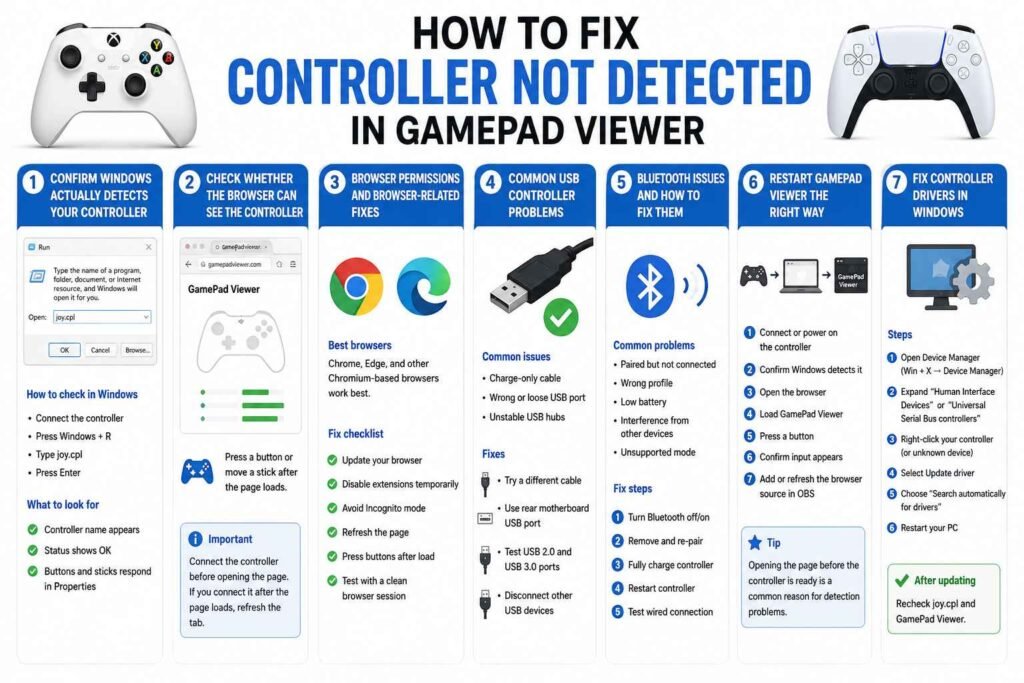
Step 1: Confirm Windows Actually detect Your Controller
Before blaming GamePad Viewer, make sure the operating system can see the controller. If Windows does not detect it properly, the browser cannot pass it to the overlay.
How to check controller detection in Windows
- Connect the controller
- Press Windows + R
- Type joy.cpl
- Press Enter
This opens the classic Game Controllers panel. If your controller appears in the list, Windows is seeing it. If it does not appear, the problem is below the browser level, and you should focus on connection or driver fixes first.
What to look for in the Game Controllers panel
- The controller name appears correctly
- Status shows OK
- Button presses and stick movement register in Properties
If nothing shows up here, skip ahead to the driver fixes and USB/Bluetooth troubleshooting sections below.
Step 2: Check Whether the Browser Can See the Controller
GamePad Viewer depends on browser gamepad support. A controller can work in Windows but still fail inside the browser if the browser has not initialized gamepad input correctly.
Quick browser test
Open a gamepad testing page or reload GamePad Viewer, and then press a button on the controller. Some browsers only recognize a controller after you interact with it by pressing a button or moving a stick.
Important detail
On many systems, the controller must already be connected before opening the GamePad Viewer page. If you connect the controller after the page loads, the overlay may not notice it until you refresh the tab.
Step 3: Browser Permissions and Browser-Related Fixes
Browser issues are one of the biggest reasons a controller appears to be “not detected” in GamePad Viewer.
Which browsers work best with GamePad Viewer?
In general, Google Chrome, Microsoft Edge, and other Chromium-based browsers tend to work best with web-based controller overlays. Some users run into inconsistent behavior in other browsers depending on updates, extensions, or privacy settings.
If your controller is not detected, try this:
- Open GamePad Viewer in Chrome or Edge
- Make sure the browser is fully updated
- Close unnecessary tabs and extensions
- Refresh the page after the controller is connected
- Press a few buttons on the controller after the page loads
Browser permission and privacy issues to check
Although GamePad Viewer does not usually ask for permissions in the same way a microphone or webcam does, privacy settings and browser protections can still interfere with device access or page behavior.
Check these browser-related issues:
- Incognito/private mode may block some behavior or extensions you rely on
- Aggressive privacy extensions can interfere with scripts on the page
- Browser security settings may block certain embedded content in OBS browser sources
- Hardware acceleration issues can sometimes cause strange browser source behavior
Fix: test with a clean browser session.
The easiest way to rule out browser issues is this:
- Close your current browser
- Open Chrome or Edge
- Disable privacy or script-blocking extensions temporarily
- Connect the controller first
- Open GamePad Viewer fresh
- Press a button on the controller
If it works in a clean browser session, the issue is likely related to browser settings, cached page behavior, or an extension conflict.
Step 4: Common USB Controller Problems
If you use a wired controller, the cable and port matter more than most people expect.
A common mistake: using a charge-only cable
Some USB cables can charge a controller but cannot transmit data. In that case, the controller powers on, but GamePad Viewer will never detect it because Windows is not receiving input data correctly.
Signs of a cable problem
- Controller lights up but does not appear in joy.cpl
- Controller disconnects randomly
- It works only when the cable is held at a certain angle
- Windows repeatedly plays the USB connect/disconnect sound
Fixes for wired controllers
- Try a different USB cable
- Plug into a rear motherboard USB port if you are on a desktop
- Avoid unstable USB hubs during testing
- Test both USB 2.0 and USB 3.0 ports
- Disconnect other controllers and unnecessary USB devices temporarily
Step 5: Bluetooth Connection Issues and How to Fix Them
Bluetooth controllers are convenient, but they are also more likely to create detection problems in GamePad Viewer.
Common Bluetooth problems
- The controller is paired but not actively connected
- Windows connected it as the wrong profile
- The battery is low, causing intermittent disconnects
- Another device already paired to the controller is interfering
- The controller entered a mode GamePad Viewer does not read correctly
Bluetooth troubleshooting steps
- Turn Bluetooth off and back on
- Remove the controller from paired devices
- Re-pair it from scratch
- Fully charge the controller
- Restart the controller before reconnecting
- Test the controller wired to rule out Bluetooth-specific issues
If the controller works over USB but not over Bluetooth, you have already narrowed the problem down significantly.
Step 6: Restart GamePad Viewer the Right Way
GamePad Viewer can sometimes fail to detect a controller if the connection order is wrong.
Best connection order
- Connect or power on the controller
- Confirm Windows detects it
- Open the browser
- Load GamePad Viewer
- Press a button on the controller
- Confirm input appears
- Only then, add or refresh the browser source in OBS
This sequence prevents many of the “overlay loads, but nothing moves” problems that happen when the page opens before the controller is ready.
Step 7: Fix Controller Drivers in Windows
If the controller is not showing up correctly in Windows or keeps appearing and disappearing, a driver issue may be the root cause.
How to update or reinstall controller drivers
- Right-click the Start button
- Open Device Manager
- Expand sections such as:
- Xbox Peripherals
- Human Interface Devices
- Bluetooth
- Sound, video and game controllers
- Find your controller or any device with a warning icon
- Right-click it and choose Update driver
If that does not help, try reinstalling it.
How to reinstall the device
- In Device Manager, right-click the controller
- Choose Uninstall device
- Disconnect the controller
- Restart the PC
- Reconnect the controller and let Windows install it again
This often clears up corrupted driver states that prevent browsers from reading the device properly.
Controller Troubleshooting Table
| Problem | Likely Cause | What to Try |
|---|---|---|
| Controller powers on but GamePad Viewer shows nothing | Browser did not initialize gamepad input | Refresh the page, press a button, reconnect controller before opening the site |
| Controller not visible in Windows game controller panel | Cable, Bluetooth, or driver problem | Try another cable, re-pair Bluetooth, reinstall drivers |
| Controller works in games but not in GamePad Viewer | Browser or extension conflict | Test in Chrome/Edge, disable extensions, use a clean browser session |
| Overlay worked before but stopped after reconnecting controller | Page loaded before controller was ready | Close page, reconnect controller, reopen GamePad Viewer |
| Wireless controller disconnects randomly | Low battery, unstable Bluetooth, interference | Recharge controller, remove and re-pair, test wired |
Step 8: Steam Input and Other Remapping Software Can Interfere
Programs such as Steam, DS4Windows, reWASD, or other controller-mapping tools can sometimes change how the controller appears to the browser.
That does not always break GamePad Viewer, but it can create situations where:
- The controller shows up as a different device
- The browser sees duplicate inputs
- The buttons map incorrectly
- GamePad Viewer does not react at all
What to do
Temporarily close:
- Steam
- DS4Windows
- reWASD
- Xbox accessory tools
- Any controller macro or remapping utility
Then reconnect the controller and test again in the browser. If GamePad Viewer starts working, one of those programs was likely intercepting or remapping the controller input.
Step 9: Fix OBS Browser Source Problems
Sometimes the controller is detected in your normal browser, but the OBS overlay still does not work. In that case, the issue is probably not the controller anymore. It is the OBS browser source setup.
Common OBS-related problems
- Wrong GamePad Viewer URL
- The browser source cached an old session
- Source dimensions are too small or cropped
- OBS browser source loaded before the controller was active
- Hardware acceleration or browser source rendering bug
Fixes to try in OBS
- Re-paste the GamePad Viewer overlay URL
- Enable Refresh browser when the scene becomes active
- Manually click Refresh cache of current page
- Increase browser source width and height
- Remove and re-add the browser source
- Close OBS completely and reopen it after the controller is already connected
If the overlay works in Chrome but not OBS
That usually means:
- The URL is wrong
- OBS cached a broken source state
- The browser source needs refreshing after the controller is connected
Step 10: Test with a Different Browser and a Different Controller Mode
Some controllers can connect in different modes, and not all modes behave the same in browser-based overlays.
For example, depending on the controller, Windows may detect it as:
- XInput device
- DirectInput device
- Bluetooth controller profile
- Vendor-specific gamepad mode
If GamePad Viewer is not detecting the controller in one mode, try:
- wired instead of Bluetooth
- Bluetooth instead of wired
- turning the controller off and reconnecting it in a different mode
- testing another controller if available
This helps you determine whether the problem is specific to the controller mode rather than the overlay itself.
Step 11: Remove Device Conflicts
If you have multiple controllers, wheels, fight sticks, handhelds, or virtual input devices connected, the browser may pick the wrong device or create confusion in GamePad Viewer.
To rule this out:
- Disconnect all extra controllers
- Close the virtual controller software
- Unplug racing wheels, HOTAS setups, or arcade sticks temporarily
- Keep only one controller connected during testing
This is especially helpful if GamePad Viewer detects “a controller” but shows the wrong input behavior.
Step 12: Advanced Fixes if GamePad Viewer Still Does Not Detect the Controller
If you have already tried the standard fixes, here are a few deeper troubleshooting steps.
Reset browser cache for the overlay page.
Sometimes a cached browser session can keep loading a broken state. Clear the browser cache or open GamePad Viewer in a fresh profile.
Update Windows
Pending Windows updates can affect Bluetooth stacks, USB device handling, and controller compatibility. Make sure the system is current.
Check power-saving settings
Windows can aggressively manage USB power on some systems.
To reduce USB power issues:
- Open Device Manager
- Expand Universal Serial Bus controllers
- Open each USB Root Hub device
- Under Power Management, uncheck options that allow Windows to turn off the device to save power
This can help if the controller disconnects or stops responding after a while.
Test the controller on another PC
If the controller fails on multiple machines, the controller hardware or firmware may be the problem.
Browser, Driver, and Connection Fixes at a Glance
| Area to Check | Symptoms | Best Fix |
|---|---|---|
| Browser compatibility | Controller works in Windows but not GamePad Viewer | Use Chrome or Edge, refresh after connecting controller, disable conflicting extensions |
| Browser source in OBS | Overlay URL loads but controller input does not show | Refresh browser source, re-add source, connect controller before launching OBS |
| USB connection | Controller lights up but input does not register | Replace cable, switch USB ports, avoid hubs |
| Bluetooth pairing | Controller appears paired but behaves inconsistently | Remove device, re-pair, recharge battery, test wired |
| Driver issues | Controller disappears, fails in Windows, or reconnects incorrectly | Update or reinstall driver in Device Manager |
| Software conflicts | Buttons map strangely or nothing appears in overlay | Close Steam, DS4Windows, reWASD, and similar tools |
Recommended Troubleshooting Order
If you want the fastest route to a fix, use this order instead of trying random changes.
| Step | What to Do | Why It Matters |
|---|---|---|
| 1 | Test the controller in joy.cpl | Confirms whether Windows detects it at all |
| 2 | Reconnect the controller before opening GamePad Viewer | Prevents browser detection issues caused by connection timing |
| 3 | Test in Chrome or Edge | Rules out browser compatibility problems |
| 4 | Try another cable or USB port | Eliminates the most common wired issue |
| 5 | Re-pair Bluetooth or switch to wired mode | Isolates wireless connection problems |
| 6 | Close Steam and controller remapping tools | Removes software conflicts |
| 7 | Reinstall controller drivers | Fixes corrupted device recognition in Windows |
| 8 | Refresh or rebuild the OBS browser source | Solves overlay-side issues once the controller works in the browser |
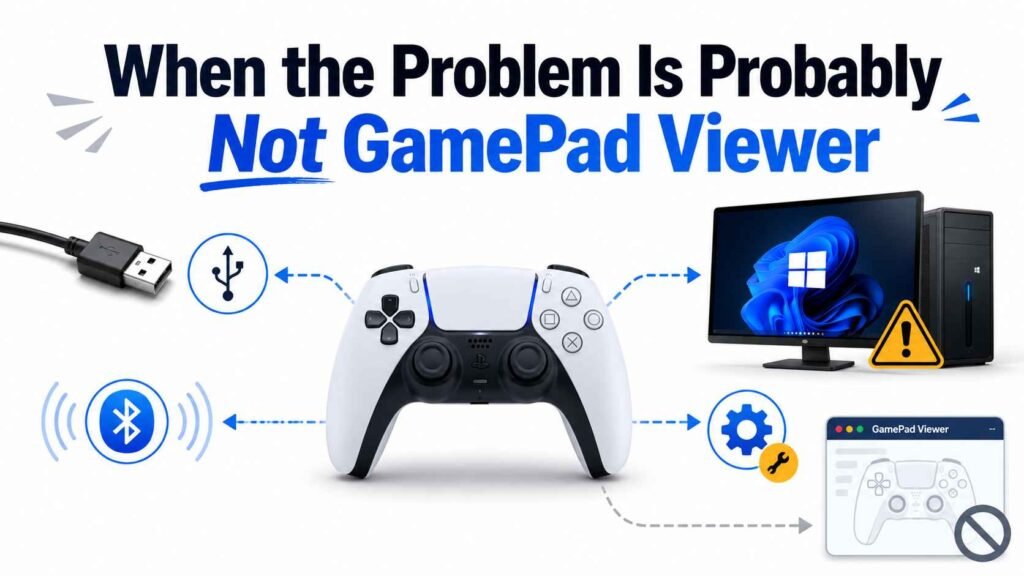
When the Problem Is Probably Not GamePad Viewer
It is easy to assume the overlay is broken, but GamePad Viewer is often just exposing a problem elsewhere in the setup.
The issue is likely outside GamePad Viewer if:
- The controller does not appear in Joy. CPL
- The controller disconnects randomly in games, too
- Windows keeps reconnecting the USB device
- Bluetooth pairing keeps failing
- The controller only charges but never sends input
- Remapping tools keep changing how the controller appears
In those cases, focus on Windows detection, cable quality, Bluetooth stability, or driver repair first.
Final Thoughts
If GamePad Viewer is not detecting your controller, the fix usually comes down to working through the setup chain in the right order:
- Make sure Windows sees the controller
- Confirm the browser can read it
- Check browser permissions, extensions, and compatibility
- Fix USB, Bluetooth, or driver problems
- Refresh the GamePad Viewer page and OBS browser source
The most effective troubleshooting approach is not to change everything at once. Start with Windows detection, then move to browser checks, and finally handle OBS or driver-related fixes if needed.
Once the controller is visible in Windows and recognized by a supported browser, GamePad Viewer usually starts working without much trouble. And if it still does not, narrowing the issue by testing wired vs Bluetooth, browser vs OBS, and with vs without remapping tools will usually reveal exactly where the problem is happening.